

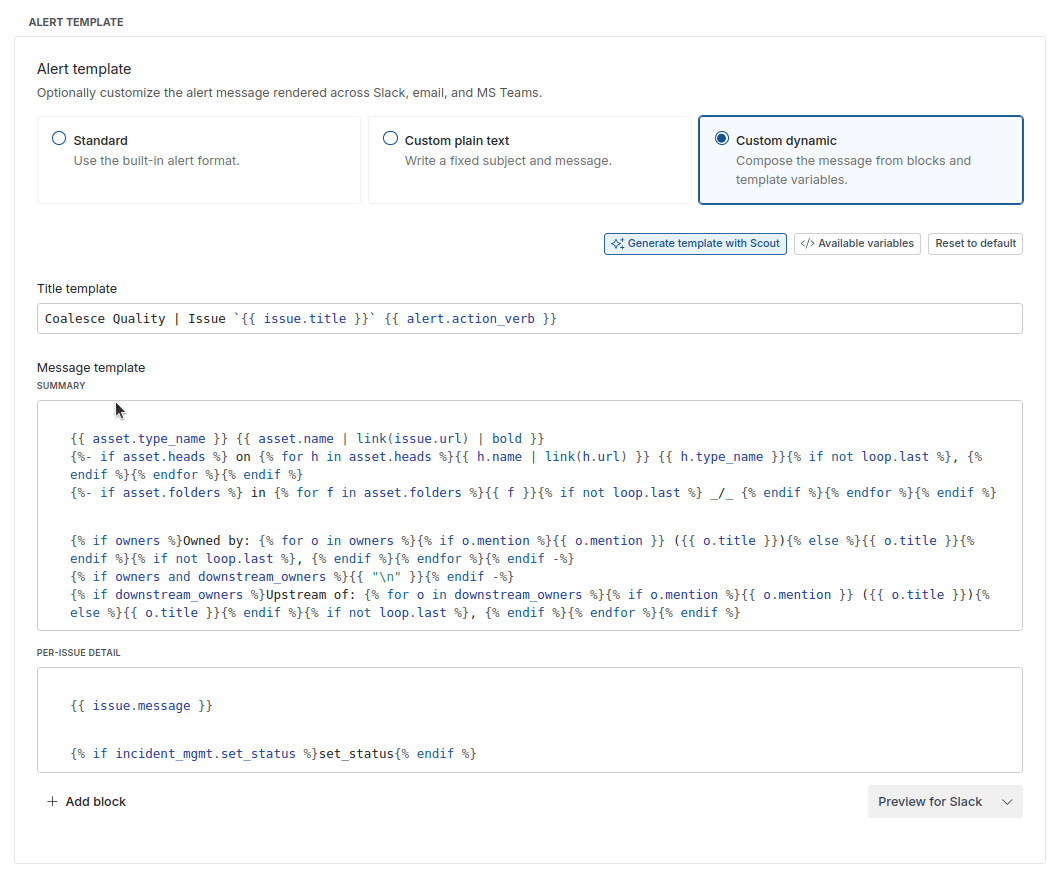
The alert template editor — compose the message from ordered blocks written in Jinja, set a title template, and reference available variables.
Choosing a template mode
Every alert offers three template modes. Pick one at the top of the template editor:
Pick a template mode: Standard uses the built-in format, Custom plain text sets a fixed message, and Custom dynamic composes the message from blocks.
Plain text templates
Custom plain text lets you define a fixed title and body. Leave a field empty to use the default for that alert. Use this mode when you want a fixed, unchanging message, like sending static content to stakeholders.Dynamic templates
Alpha feature. Customizing alert content with Dynamic templates as
described here — are currently in Alpha. Contact the
Coalesce team to have them enabled for your workspace.
The block model
A template is an ordered list of blocks. Each block is a small, self-contained fragment written in Jinja, and each block renders on its own — a block cannot reference or inherit from another block. There is no shared base template:{% extends %} and
{% include %} are not supported and will fail to render.
Each alert ships with a default template made up of the shared catalog
blocks below. When you save a custom template it replaces the default
entirely — so to keep a section you must keep its block, and to remove a
section you simply omit its block.
Layout sections
A rendered alert is laid out in two sections, and every block belongs to one of them:
Catalog blocks have fixed placements per channel, so they land in the right
section automatically. A custom block renders in whichever section you
assign it to.
Catalog blocks
Catalog blocks land in a fixed layout section — you don’t place them yourself. The sections below are the defaults for Ungrouped Issue alerts; Grouped Issue alerts may repeat a block across both sections.Custom blocks
You are not limited to the catalog. Add your own named block with whatever Jinja content you like; it renders in list order within the layout section you assign it to.Variables and filters
Variables carry the alert’s data; filters (taggedfilter below) format
a value. Apply a filter with a pipe: {{ asset.name | bold }}. Every variable is
optional — a value that isn’t available for a given alert renders as empty rather
than erroring, and a filter applied to an empty value renders as empty text.
Click Available variables in the editor to open a reference panel listing every
variable and filter grouped by category, so you can browse and insert them without
leaving the editor.
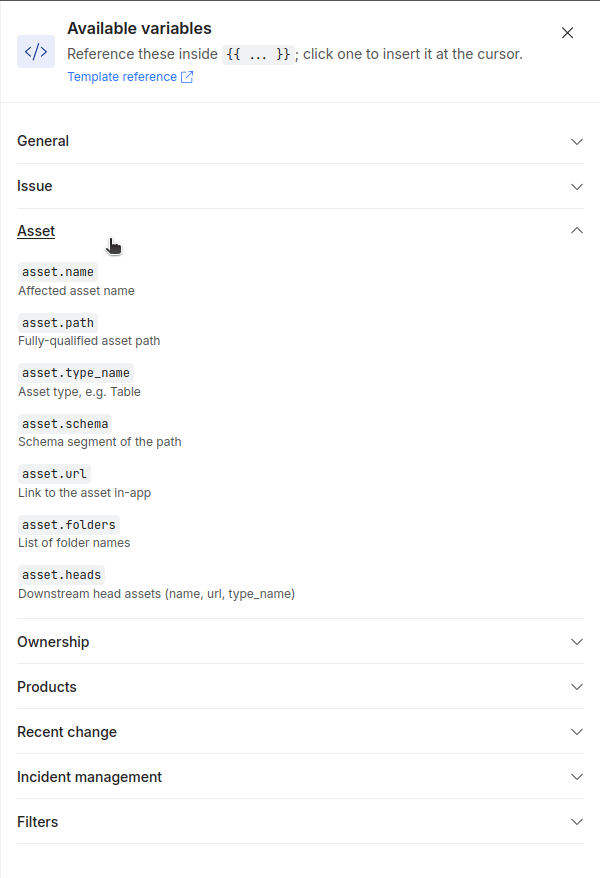
The Available variables panel — every variable and filter, grouped by category.
Filters are channel-aware: the same template renders native Slack markup,
HTML email, or MS Teams markup depending on where the alert is sent — you don’t
(and can’t) branch on the channel yourself. The
mention field on owners and
downstream_owners is already formatted for the channel, so print it directly.
Ungrouped Issue alerts
Alerts that fire once per issue expose these in addition to the common set:Grouped Issue alerts
Alerts that group issues by failing entity expose these in addition to the common set:Worked examples
A stripped-back analyst Slack alert
To give analysts a lean alert, keep the headline, affected products, ownership, and error message, and drop the asset metadata and incident-management sections. Because a custom template replaces the default, you achieve this by keeping only the blocks you want:
Omitting
asset_metadata and incident_mgmt removes those sections — and
because incident_mgmt is gone, the Slack Set Status button is dropped too.
A headline that leads with the schema
To surface the schema in the headline, override theheadline block on a
per-issue alert:
analytics.orders, this renders as
analytics/orders created. (Use this on per-issue alerts — asset.schema is not
available on grouped alerts.)
Adding a remediation playbook link to the summary
The summary can carry more than the default blocks. Add a custom block and assign it to the Summary section to include a “what to do next” line — for example, a link to your team’s runbook for fixing the issue:link filter renders it as a
native hyperlink in Slack, email, and Microsoft Teams alike. To make the link
follow the asset, build the URL from a variable instead of hard-coding it:
When a template breaks
Templates are validated as you edit: the live preview in the editor renders your template against a sample alert and shows any parse or render error inline, so you can fix it before saving. Because filters are channel-aware, the same template is previewed as it will appear in each channel — switch the preview between Slack, Email, and Microsoft Teams: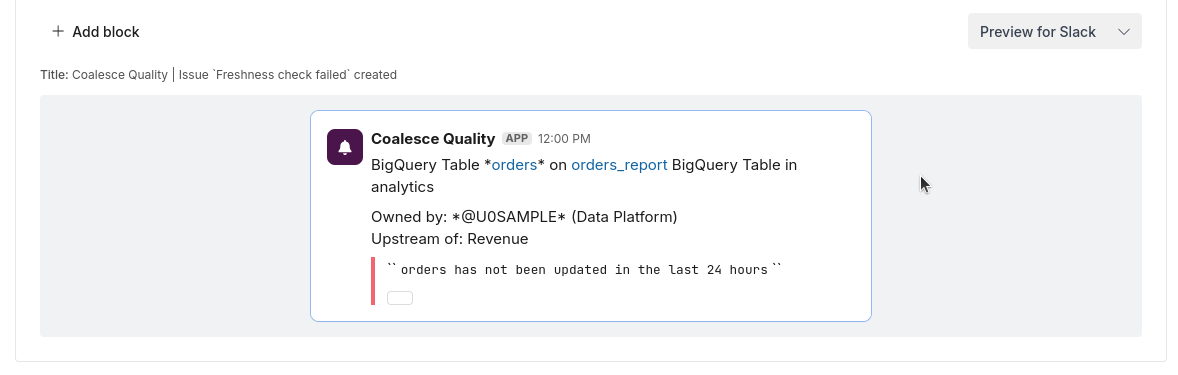
Live preview — how the template renders as a Slack message.
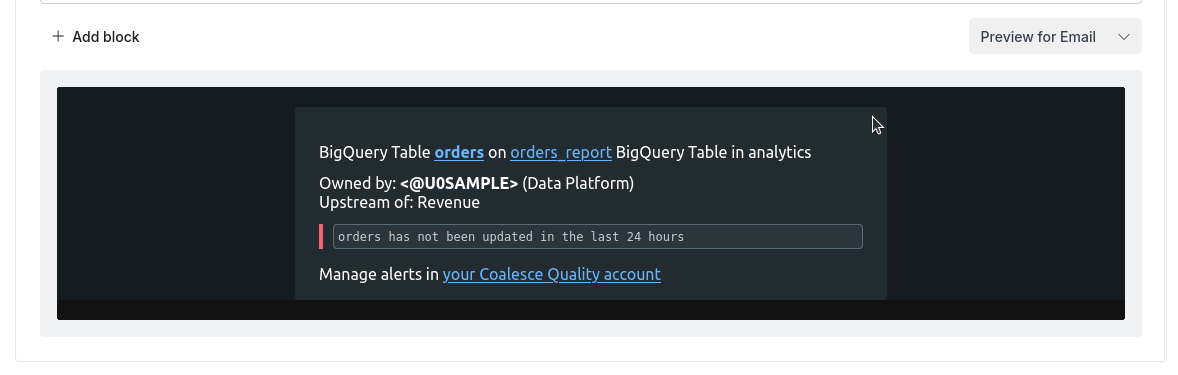
Live preview — the same template rendered as an HTML email.
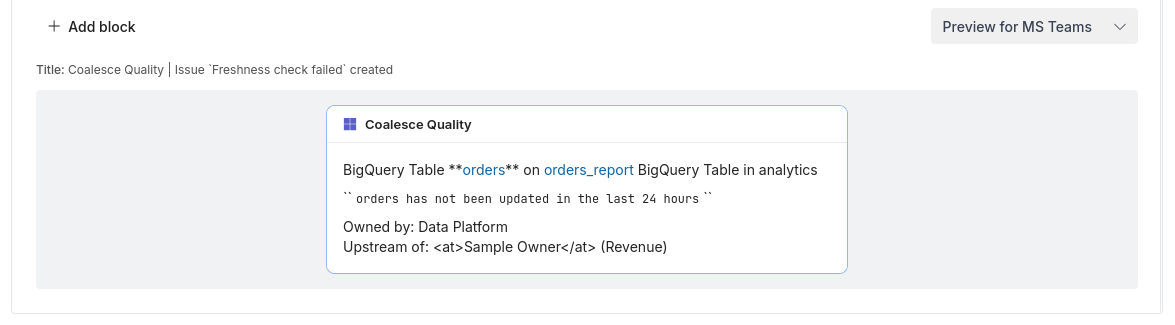
Live preview — the same template rendered as a Microsoft Teams card.