> ## Documentation Index
> Fetch the complete documentation index at: https://docs.synq.io/llms.txt
> Use this file to discover all available pages before exploring further.
# Redshift
> Integrating Redshift with Coalesce Quality
This guide will show you how to securely connect Coalesce Quality to your Redshift cluster or Redshift Serverless workgroup.
We need this information so we collect metadata about your tables.
To be able to finish this guide, you'll need the following:
→ Access to modify your Redshift configuration as a superuser
⏱️ Estimated time to finish: 10 minutes.
## Data we collect
We read metadata from your Redshift database using the dedicated user described below. Depending on which features you enable in the integration, we ingest:
* **Catalog** — databases, schemas, tables, views, late-binding views, materialized views, columns, comments, data types, constraints (informational primary / unique / foreign keys).
* **SQL definitions** — view definitions, materialized view definitions, stored procedure bodies, and UDF bodies. Used for lineage and to detect references between objects.
* **Distribution and sort metadata** — `DISTSTYLE`, `DISTKEY`, `SORTKEY` (compound / interleaved / auto) per table.
* **Table metrics** *(opt-in)* — row counts and last-modified timestamps for anomaly detection.
* **Query logs** *(opt-in)* — `SYS_QUERY_HISTORY` for performance, cost, and lineage signals.
* **Freshness from query logs** *(opt-in)* — `SYS_QUERY_DETAIL` for tables touched by recent writes. Requires the `sys:monitor` role on Redshift Serverless.
* **External tables** — Spectrum external schemas and tables, when present.
**Metadata vs. data access.** The baseline grants below give Coalesce Quality access to your **schema and DDL**, never to row data. With every opt-in disabled, the integration runs metadata-only queries against `SVV_*` and `pg_catalog` views. Data-reading queries are issued only when you enable *Fetch table metrics*, *Fetch query logs*, *Freshness from query logs*, or run SQL test execution against the audit table.
We connect on a schedule (typically every 30 minutes). On Redshift Serverless this corresponds to roughly one minute of compute per scrape at the workgroup's base capacity — the actual bill depends on your base RPU setting. On provisioned Redshift our queries run on your existing cluster's compute and are negligible compared to a regular workload.
## Setup Redshift access
### Create a dedicated user with sufficient permissions
1. Open the Query Editor in Redshift and make sure the right cluster / workgroup and database are selected.
2. Run the following SQL as a superuser to create a dedicated user and group with the necessary read-only permissions, where `` is a secret you define for the integration.
```sql theme={null}
CREATE GROUP synq;
CREATE USER synq_user PASSWORD '' IN GROUP synq;
-- Catalog metadata views (svv_*)
GRANT SELECT ON pg_catalog.svv_redshift_databases TO GROUP synq;
GRANT SELECT ON pg_catalog.svv_all_schemas TO GROUP synq;
GRANT SELECT ON pg_catalog.svv_all_tables TO GROUP synq;
GRANT SELECT ON pg_catalog.svv_all_columns TO GROUP synq;
GRANT SELECT ON pg_catalog.svv_table_info TO GROUP synq;
GRANT SELECT ON pg_catalog.svv_external_tables TO GROUP synq;
```
3. Grant `USAGE` on each schema you want monitored. This is required even for views that use `WITH NO SCHEMA BINDING` — both the schema in which the late-binding view is defined and any schemas it reads from need `USAGE`.
```sql theme={null}
GRANT USAGE ON SCHEMA TO GROUP synq;
```
To grant `USAGE` on every schema in the database:
```sql theme={null}
DO $do$
DECLARE
sch text;
BEGIN
FOR sch IN SELECT nspname FROM pg_namespace
LOOP
EXECUTE format($$ GRANT USAGE ON SCHEMA %I TO GROUP synq $$, sch);
END LOOP;
END;
$do$;
```
4. Grant the user visibility into stored procedures, UDFs, and materialized views in the schemas you want monitored. Without these grants, procedure / UDF metadata and materialized view definitions will not be collected.
```sql theme={null}
GRANT EXECUTE ON ALL FUNCTIONS IN SCHEMA TO GROUP synq;
GRANT EXECUTE ON ALL PROCEDURES IN SCHEMA TO GROUP synq;
ALTER DEFAULT PRIVILEGES IN SCHEMA
GRANT EXECUTE ON FUNCTIONS TO GROUP synq;
ALTER DEFAULT PRIVILEGES IN SCHEMA
GRANT EXECUTE ON PROCEDURES TO GROUP synq;
```
5. (Optional) Grant access to table data within a schema. Required if you want Coalesce Quality to run monitors on your raw data — for example [Custom SQL monitors](/monitor-types/custom-sql-monitor):
```sql theme={null}
GRANT SELECT ON ALL TABLES IN SCHEMA TO GROUP synq;
ALTER DEFAULT PRIVILEGES IN SCHEMA
GRANT SELECT ON TABLES TO GROUP synq;
```
### Enable freshness monitoring (Redshift Serverless)
To estimate table freshness from query logs, the user needs access to `SYS_QUERY_DETAIL`. On Redshift Serverless this is gated behind the predefined `sys:monitor` role.
```sql theme={null}
GRANT ROLE sys:monitor TO synq_user;
```
For provisioned Redshift, equivalent visibility comes from `STV_*` / `STL_*` views — see the [official Redshift system table reference](https://docs.aws.amazon.com/redshift/latest/dg/cm_chap_system-tables.html).
### Whitelist the Coalesce Quality IP
For the complete list of IP addresses by region, see [Coalesce Quality IP Whitelist](/security/ip).
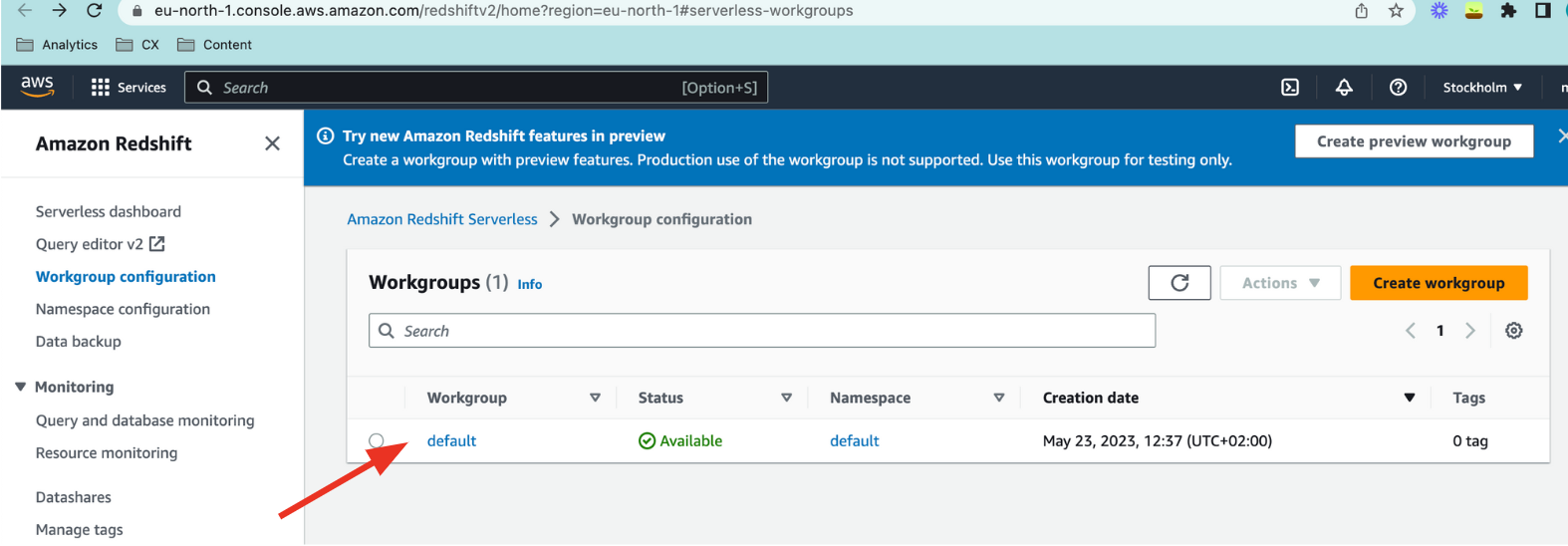
1. From Redshift, navigate to `Workgroup configuration` and click your default workgroup.
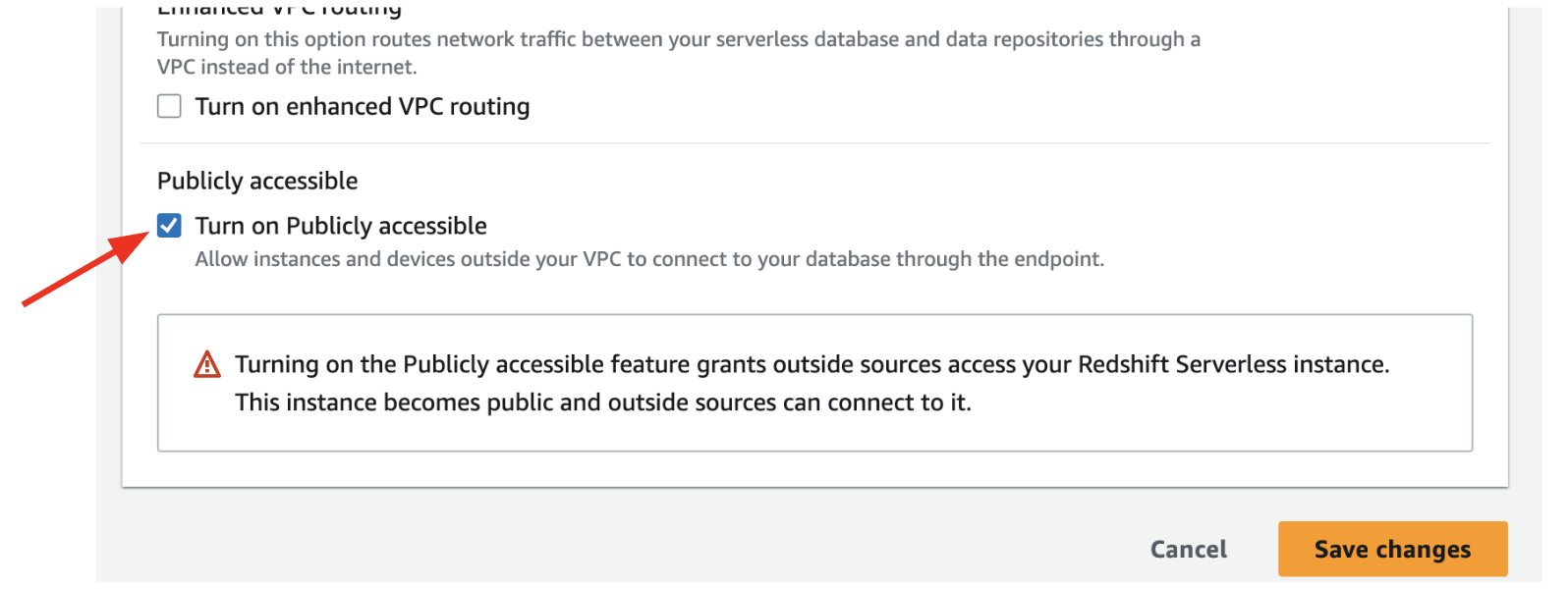
 2. Under Network and security click `Edit` and check the *Turn on Publicly accessible* checkmark. Then click `Save changes`.
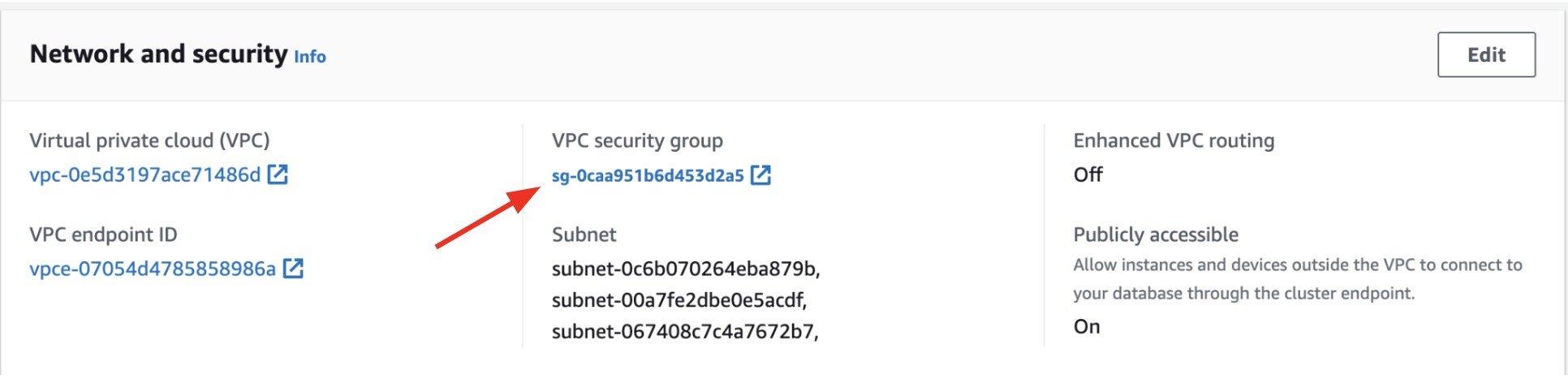
 3. Close the window to return to the workgroup view and click your VPC security group.
 4. Under the *Inbound rules* tab click `Edit inbound rules`, then `Add rule`:
 * Type: `Redshift` (port 5439)
* Source: `Custom` with `34.105.135.39` (EU) or `35.238.250.82` (US)
5. Click `Save rules`.
### Database, dataset and host name
1. Take a note of your database name. It can be found in the Query Editor.
* Type: `Redshift` (port 5439)
* Source: `Custom` with `34.105.135.39` (EU) or `35.238.250.82` (US)
5. Click `Save rules`.
### Database, dataset and host name
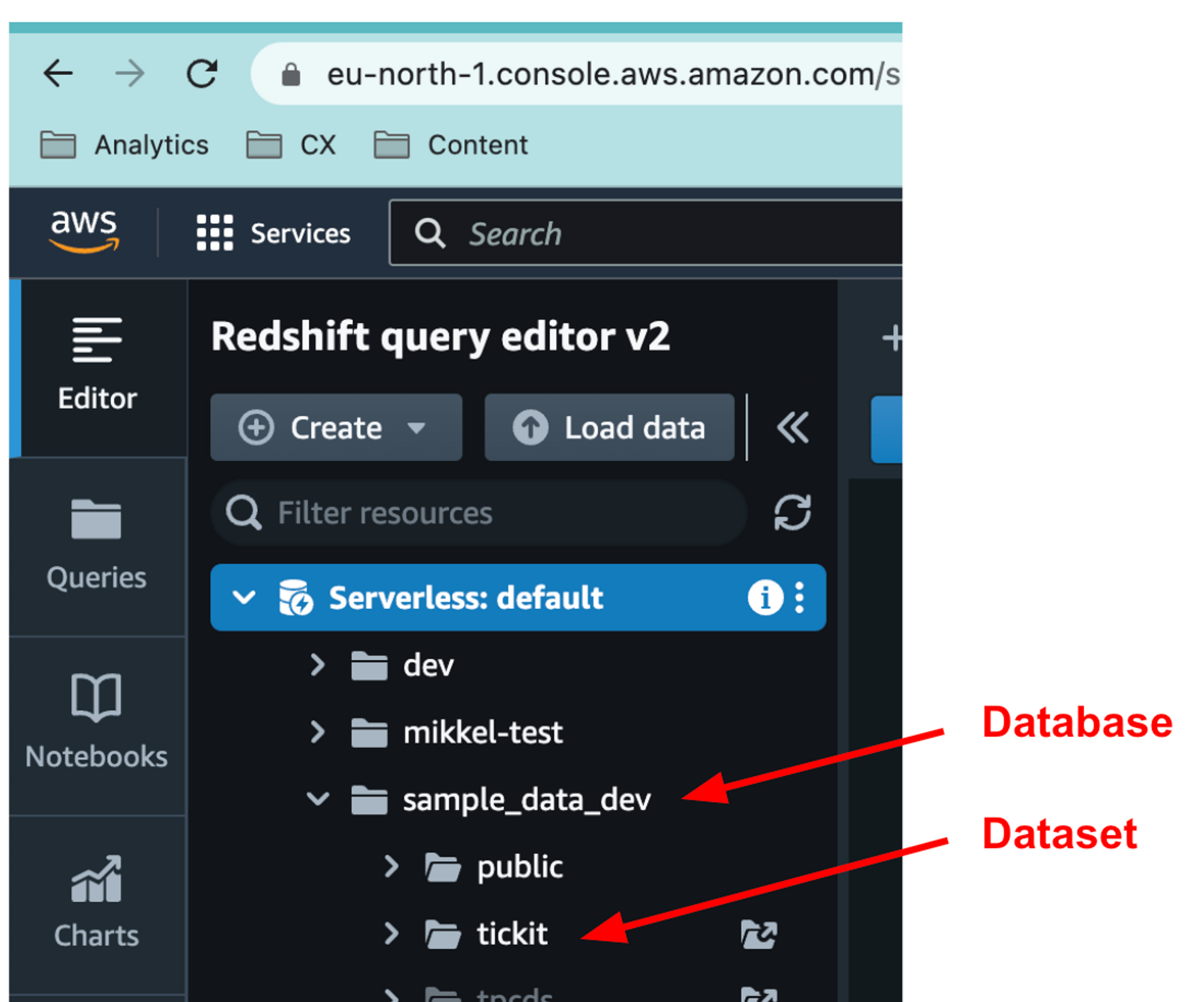
1. Take a note of your database name. It can be found in the Query Editor.
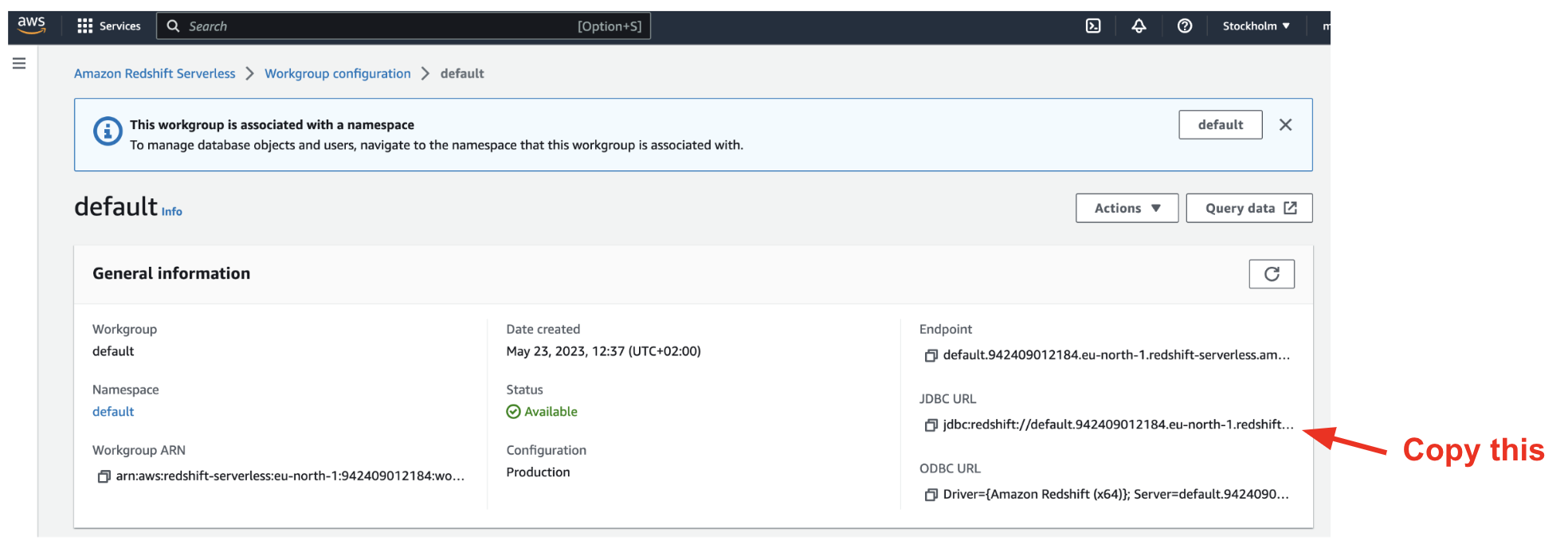
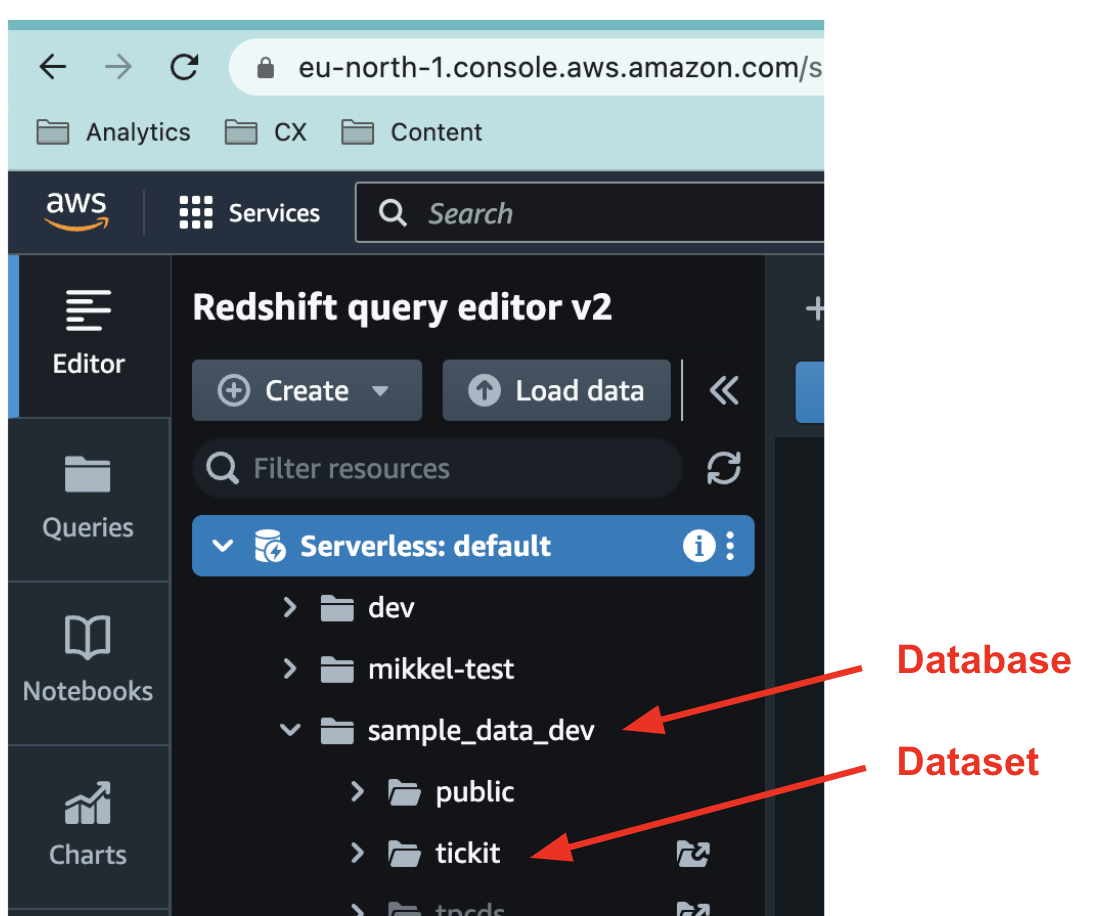 2. Go to `Workgroup configuration` and select your workgroup. Take a note of your `JDBC URL`.
 ## Input data in the Coalesce Quality UI
### Integration name
For example `Redshift`.
### Database
The name of your database (e.g. `analytics_prod`).
## Input data in the Coalesce Quality UI
### Integration name
For example `Redshift`.
### Database
The name of your database (e.g. `analytics_prod`).
 ### Host
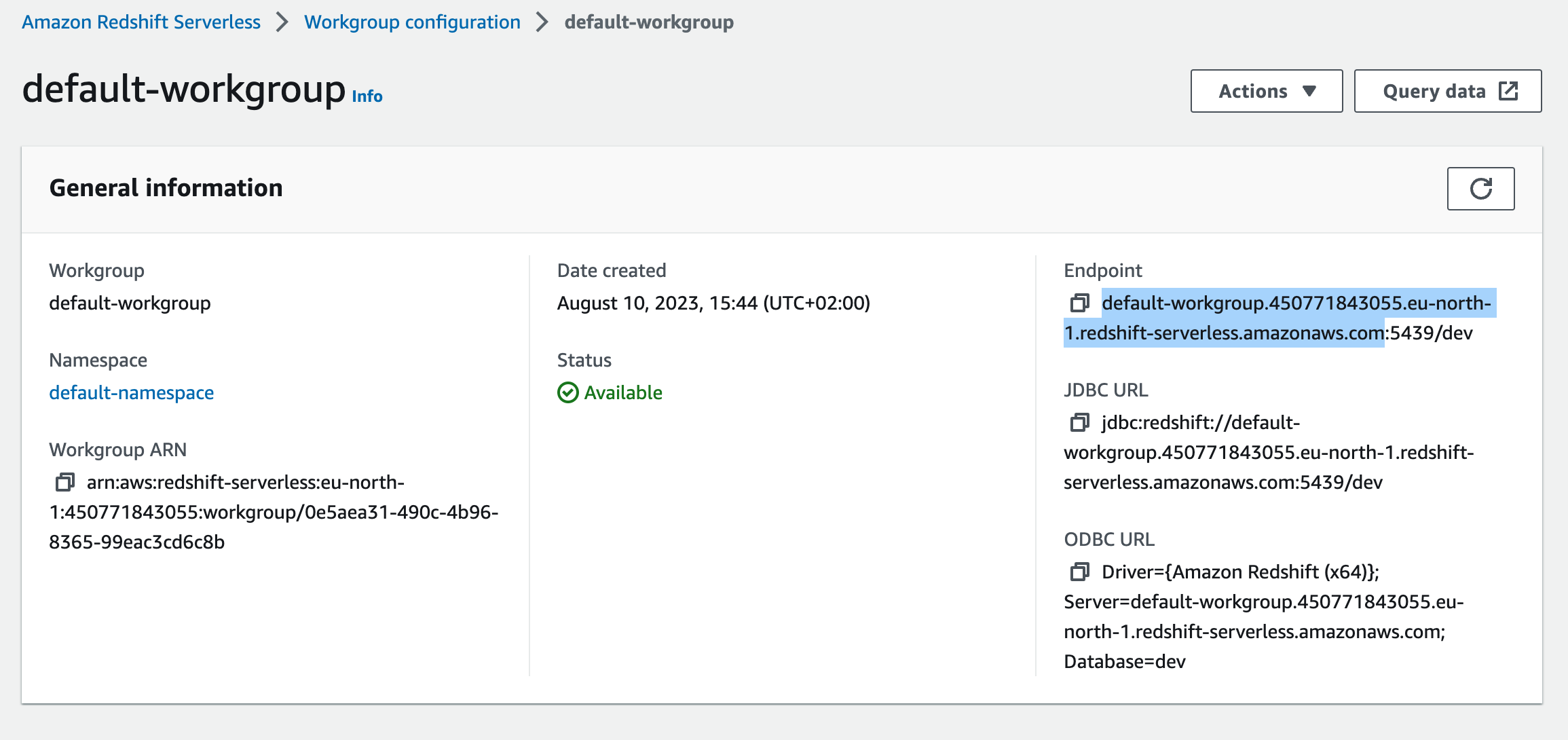
The hostname of your workgroup endpoint (e.g. `my-workgroup.123456789012.eu-central-1.redshift-serverless.amazonaws.com` or `my-cluster.us-east-1.redshift.amazonaws.com`).
To find the host: open Workgroup configuration, copy the Endpoint, and strip the trailing `:5439/` part.
### Host
The hostname of your workgroup endpoint (e.g. `my-workgroup.123456789012.eu-central-1.redshift-serverless.amazonaws.com` or `my-cluster.us-east-1.redshift.amazonaws.com`).
To find the host: open Workgroup configuration, copy the Endpoint, and strip the trailing `:5439/` part.
 ### Port
Default is `5439`.
### User and password
`synq_user` and the password you set in step 2 above.
### Audit table name (optional)
Fully qualified name (`schema.table`) of the table where Coalesce Quality should write SQL test audit logs — for example `analytics.synq_sql_test__audit`. Coalesce Quality creates the table if it does not exist. Leave empty if you only run metadata monitors and don't execute custom SQL tests against the warehouse.
### SSH Tunnel (optional)
If your Redshift workgroup is private and only reachable through a bastion host, click `Add SSH tunnel` and fill in the bastion details. Leave this empty for clusters reachable via the public endpoint (the standard setup described above).
### Data collection options
Two opt-in checkboxes control what beyond catalog metadata Coalesce Quality reads:
* **Fetch query logs (Recommended)** — pulls from `SYS_QUERY_HISTORY`. Required for proactive anomaly-monitor training, unused-table detection, and cost insights. Adds a small recurring query cost — typically a few dollars per month on Serverless.
* **Estimate freshness of tables from `SYS_QUERY_DETAIL` view** — derives a per-table last-modified timestamp from query history. Requires the `sys:monitor` role on Serverless (see [Enable freshness monitoring](#enable-freshness-monitoring-redshift-serverless) above).
In some cases, permission grants can take a while to propagate. If you keep getting a `Connect failed` error after double-checking your details, try again after a minute.
### Port
Default is `5439`.
### User and password
`synq_user` and the password you set in step 2 above.
### Audit table name (optional)
Fully qualified name (`schema.table`) of the table where Coalesce Quality should write SQL test audit logs — for example `analytics.synq_sql_test__audit`. Coalesce Quality creates the table if it does not exist. Leave empty if you only run metadata monitors and don't execute custom SQL tests against the warehouse.
### SSH Tunnel (optional)
If your Redshift workgroup is private and only reachable through a bastion host, click `Add SSH tunnel` and fill in the bastion details. Leave this empty for clusters reachable via the public endpoint (the standard setup described above).
### Data collection options
Two opt-in checkboxes control what beyond catalog metadata Coalesce Quality reads:
* **Fetch query logs (Recommended)** — pulls from `SYS_QUERY_HISTORY`. Required for proactive anomaly-monitor training, unused-table detection, and cost insights. Adds a small recurring query cost — typically a few dollars per month on Serverless.
* **Estimate freshness of tables from `SYS_QUERY_DETAIL` view** — derives a per-table last-modified timestamp from query history. Requires the `sys:monitor` role on Serverless (see [Enable freshness monitoring](#enable-freshness-monitoring-redshift-serverless) above).
In some cases, permission grants can take a while to propagate. If you keep getting a `Connect failed` error after double-checking your details, try again after a minute.