> ## Documentation Index
> Fetch the complete documentation index at: https://docs.synq.io/llms.txt
> Use this file to discover all available pages before exploring further.
# BigQuery
> Integrating BigQuery with Coalesce Quality
This guide explains how to connect Coalesce Quality to BigQuery securely.
We need this information so we can collect relevant data about your tables.
To be able to finish this guide, you’ll need the following:
→ Access to modify your BigQuery configuration
⏱️ Estimated time to finish: 10 minutes.
## Data we collect
For the automated data anomaly testing, we collect the following:
* Number of rows in every table in the monitored dataset(s)
* Timestamp of the last change of data in all tables in the monitored dataset(s)
**To provide out-of-the-box monitors for volume and freshness, we don’t require access to your actual data. For custom monitors, however, access to query your raw data is required.**
Permission overview:
| Permission | Description | Included in BQ role | Purpose |
| ------------------------------ | ---------------------------------------------------------------------------------------------------------------------------------------------------------------------------------------------------------------------------------------- | ------------------------- | --------------------------------------------------- |
| bigquery.datasets.get | Get metadata about a dataset. | Data Viewer | automated / custom monitors |
| bigquery.datasets.getIamPolicy | Required by the Cloud Console to give the user the option of getting a dataset's IAM permissions. Fails open. The ability to actually perform the operation of getting the permissions is gated by the bigquery.datasets.get permission. | Data Viewer | automated / custom monitors |
| bigquery.jobs.create | Run jobs (including queries) within the project. | Job User | automated / custom monitors |
| bigquery.jobs.get | Get data and metadata on any job — required to retrieve the result of the metadata queries we submit. | Job User | automated / custom monitors |
| bigquery.jobs.list | List all jobs and retrieve metadata on any job submitted by any user. For jobs submitted by other users, details and metadata are redacted. | Resource Viewer | query logs |
| bigquery.jobs.listAll | List all jobs and retrieve metadata on any job submitted by any user. | Resource Viewer | query logs |
| bigquery.tables.get | Get table metadata. | Data Viewer | automated monitors |
| bigquery.tables.getData | Get table data. | Data Viewer | custom monitors (optional — skip for metadata-only) |
| bigquery.tables.list | List tables and metadata on tables. | Data Viewer | automated / custom monitors |
| bigquery.routines.get | Get metadata for user-defined functions, table-valued functions and stored procedures. | Data Viewer | connection validation only |
| bigquery.routines.list | List routines in a dataset. | Data Viewer | connection validation only |
| resourcemanager.projects.get | | Data/Jobs/Resource Viewer | All |
# Setup BigQuery access
### Create a dedicated Coalesce Quality role
1. Select the project with your BigQuery instance in the project picker.
2. Go to `IAM and Admin` → `Roles` → `Create Role`.
3. Fill in:
* Title: `Coalesce Quality Monitoring`
* Description: `Coalesce Quality Monitoring role`
* Role launch stage: `General Availability`
4. Click `Add permissions` and add:
```yaml theme={null}
bigquery.datasets.get
bigquery.datasets.getIamPolicy
bigquery.jobs.create
bigquery.jobs.get
bigquery.jobs.list
bigquery.jobs.listAll
bigquery.tables.get
bigquery.tables.getData
bigquery.tables.list
bigquery.routines.get
bigquery.routines.list
resourcemanager.projects.get
```
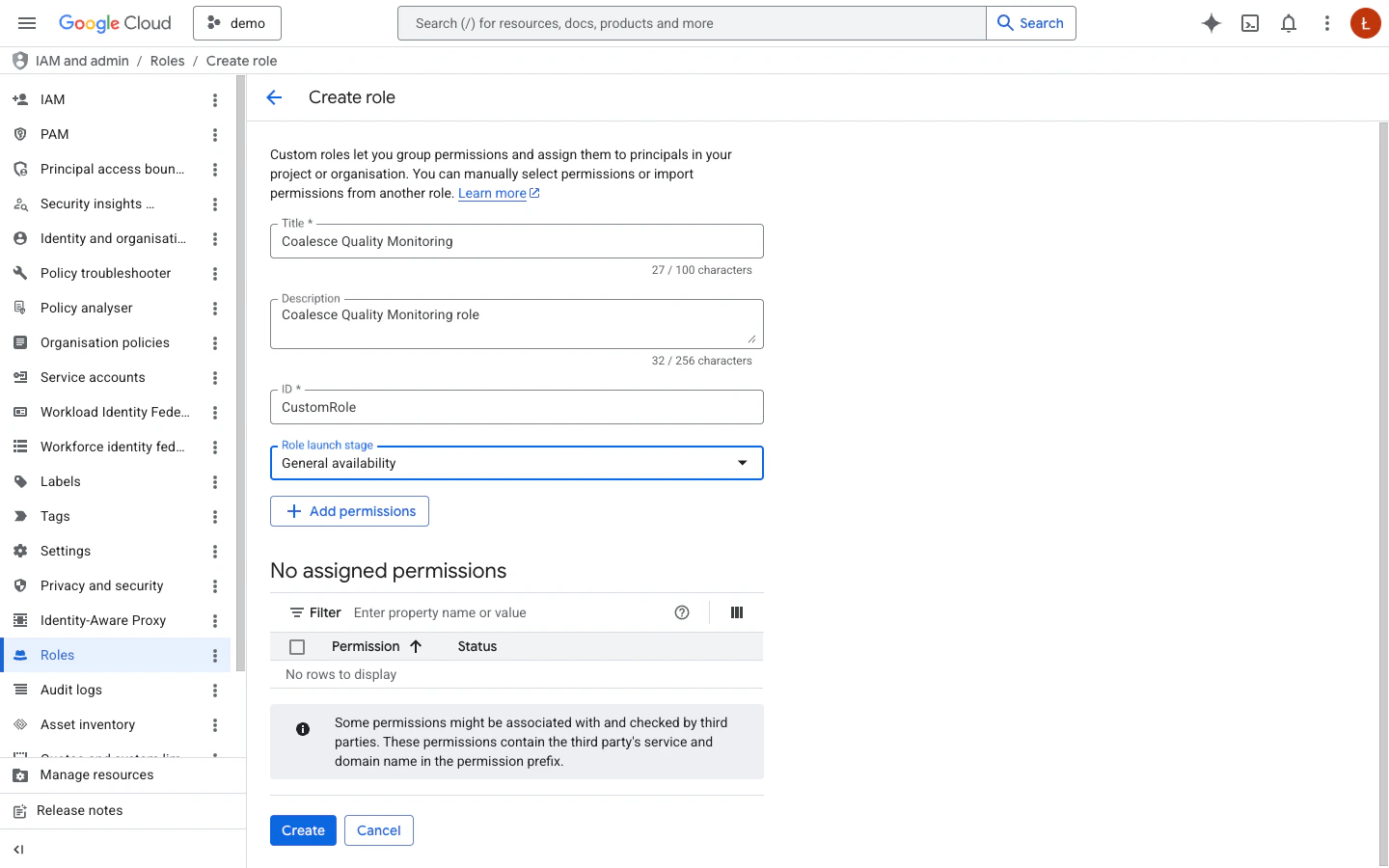 5. Click `Create`.
### Create a service account
1. Go to `IAM and Admin` → `Service Accounts` → `Create Service Account`.
2. Fill in:
* Service account name: `synq-monitoring`
* Service account description: `Coalesce Quality Monitoring Service Account`
5. Click `Create`.
### Create a service account
1. Go to `IAM and Admin` → `Service Accounts` → `Create Service Account`.
2. Fill in:
* Service account name: `synq-monitoring`
* Service account description: `Coalesce Quality Monitoring Service Account`
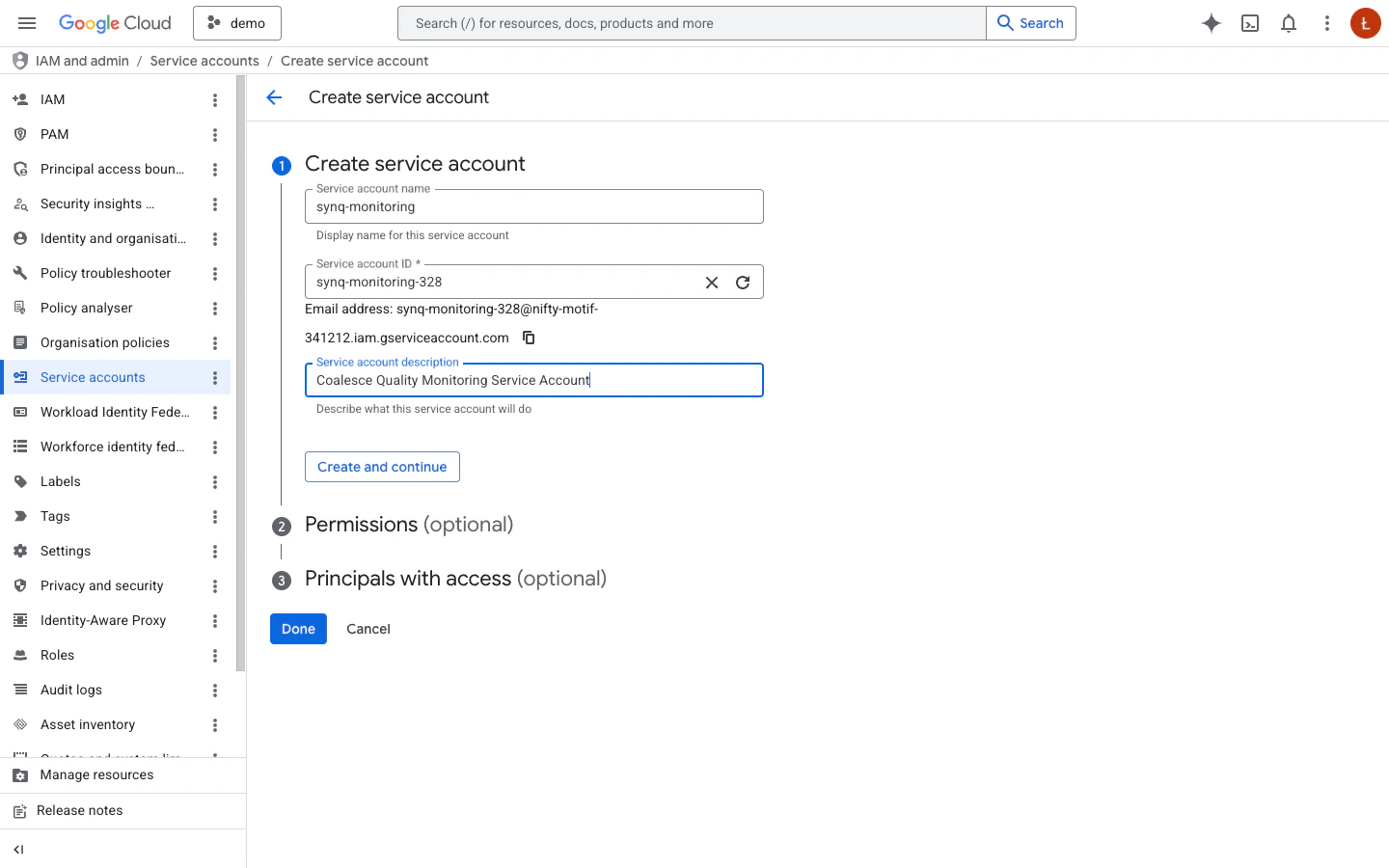 3. Click `Create and continue`.
4. In section *Grant this service account access to the project*, select the previously created `Coalesce Quality Monitoring` role, then click `Done`.
### Create a service account key
1. Open your newly created service account and switch to the `Keys` tab.
2. Click `Add key` → `Create new key`, choose **JSON**, and click `Create`.
3. Click `Create and continue`.
4. In section *Grant this service account access to the project*, select the previously created `Coalesce Quality Monitoring` role, then click `Done`.
### Create a service account key
1. Open your newly created service account and switch to the `Keys` tab.
2. Click `Add key` → `Create new key`, choose **JSON**, and click `Create`.
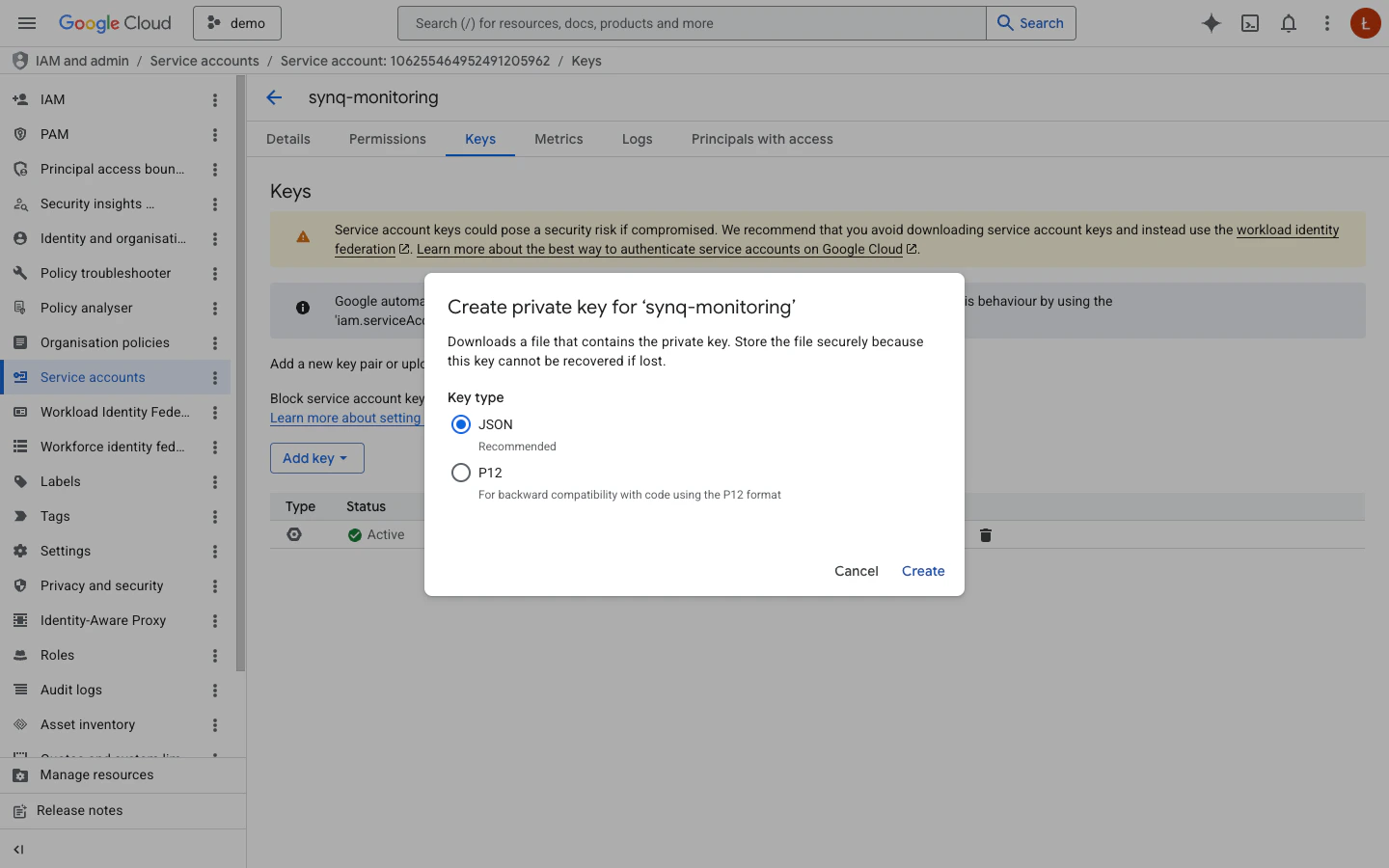 3. Store the downloaded JSON key file securely.
## Personal access (user OAuth)
In addition to the workspace service account above, you can let each Coalesce Quality member authenticate as themselves against BigQuery. Queries then run under the member's own Google identity and respect the IAM grants on that user. See [Data Warehouse Access](/security/dwh-access) for the full model and when to enable it.
To enable personal access, a Google Cloud admin creates a single OAuth 2.0 Client ID once, then pastes the client ID and secret into the BigQuery integration's edit page in Coalesce Quality.
### Configure branding
Skip this step if your project's Google Auth Platform is already configured.
1. In the Google Cloud console for the project that will host the OAuth app, go to `Google Auth Platform` → `Branding`.
2. Fill in the app name (e.g. `Coalesce Quality`), user support email, and developer contact.
3. Store the downloaded JSON key file securely.
## Personal access (user OAuth)
In addition to the workspace service account above, you can let each Coalesce Quality member authenticate as themselves against BigQuery. Queries then run under the member's own Google identity and respect the IAM grants on that user. See [Data Warehouse Access](/security/dwh-access) for the full model and when to enable it.
To enable personal access, a Google Cloud admin creates a single OAuth 2.0 Client ID once, then pastes the client ID and secret into the BigQuery integration's edit page in Coalesce Quality.
### Configure branding
Skip this step if your project's Google Auth Platform is already configured.
1. In the Google Cloud console for the project that will host the OAuth app, go to `Google Auth Platform` → `Branding`.
2. Fill in the app name (e.g. `Coalesce Quality`), user support email, and developer contact.
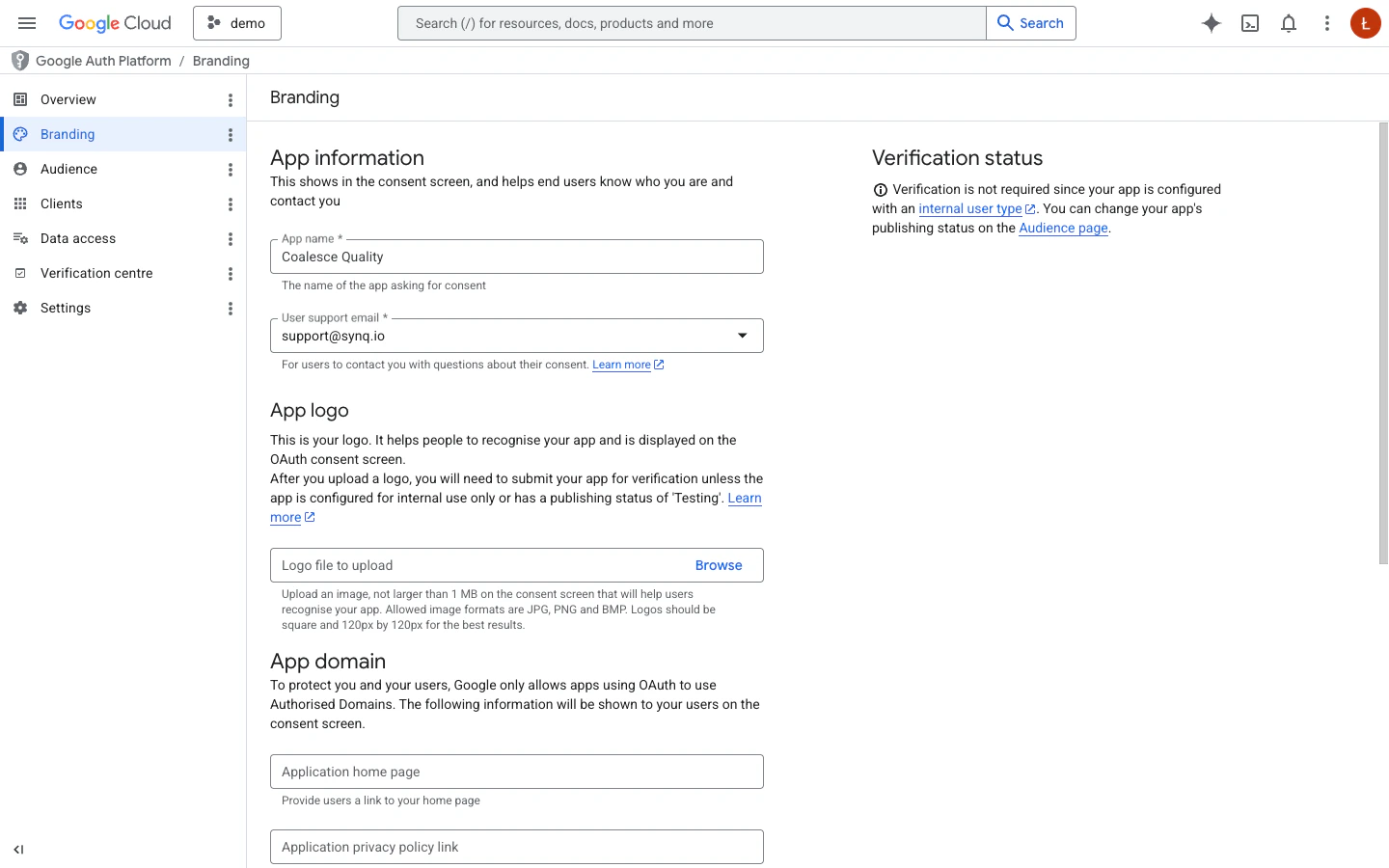 3. Save.
### Choose the audience
1. Go to `Google Auth Platform` → `Audience`.
2. **User type**: pick `Internal` if every Coalesce Quality member has a Google account in your Workspace organisation, otherwise `External`.
If you use `External` and stay in **Testing** mode, Google caps refresh tokens at 7 days — members will need to re-consent weekly. Promote the publishing status to **Production** (or use `Internal`) for long-lived access.
### Create the OAuth client
1. Go to `Google Auth Platform` → `Clients` → `Create client`.
2. **Application type**: `Web application`.
3. **Name**: e.g. `Coalesce Quality`.
4. Under **Authorised redirect URIs**, add the URI(s) for the Coalesce Quality region(s) your members use, with no trailing slash:
* EU: `https://app.synq.io/auth/dwh-oauth/callback`
* US: `https://app.us.synq.io/auth/dwh-oauth/callback`
3. Save.
### Choose the audience
1. Go to `Google Auth Platform` → `Audience`.
2. **User type**: pick `Internal` if every Coalesce Quality member has a Google account in your Workspace organisation, otherwise `External`.
If you use `External` and stay in **Testing** mode, Google caps refresh tokens at 7 days — members will need to re-consent weekly. Promote the publishing status to **Production** (or use `Internal`) for long-lived access.
### Create the OAuth client
1. Go to `Google Auth Platform` → `Clients` → `Create client`.
2. **Application type**: `Web application`.
3. **Name**: e.g. `Coalesce Quality`.
4. Under **Authorised redirect URIs**, add the URI(s) for the Coalesce Quality region(s) your members use, with no trailing slash:
* EU: `https://app.synq.io/auth/dwh-oauth/callback`
* US: `https://app.us.synq.io/auth/dwh-oauth/callback`
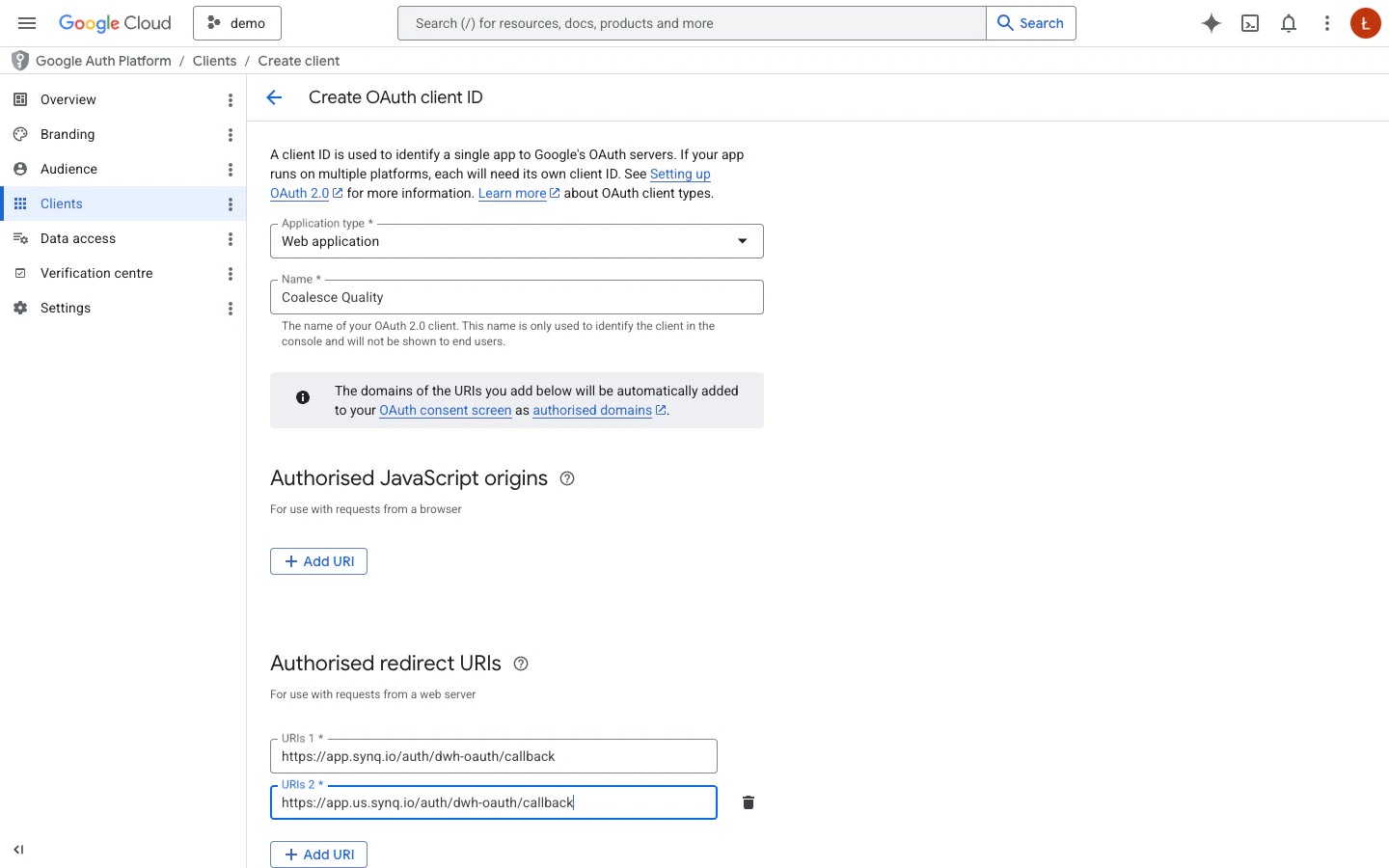 5. Click `Create`. Copy the **Client ID** and **Client secret**.
### Enable the BigQuery API
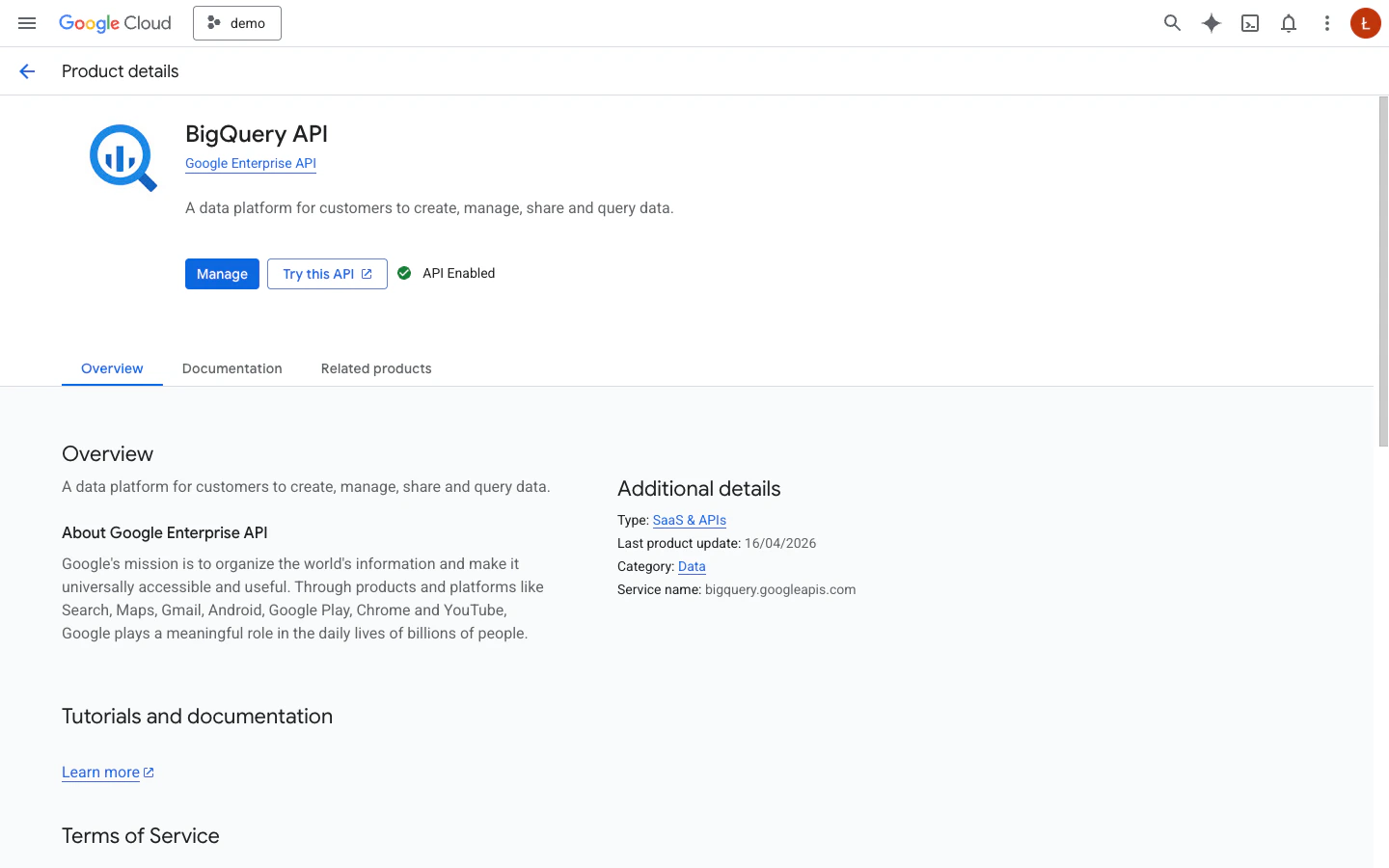
In the same project, go to `APIs & Services` → `Library`, search for **BigQuery API**, and click `Enable` (already enabled if you scrape BigQuery from this project).
5. Click `Create`. Copy the **Client ID** and **Client secret**.
### Enable the BigQuery API
In the same project, go to `APIs & Services` → `Library`, search for **BigQuery API**, and click `Enable` (already enabled if you scrape BigQuery from this project).
 ### Paste credentials into Coalesce Quality
In Settings → Integrations → *(your BigQuery integration)* → Warehouse access → Personal credentials, paste the Client ID and Client secret. Members will then see this BigQuery integration listed under Settings → Warehouse access → My credentials and can connect their own Google account.
Coalesce Quality requests two OAuth scopes during member consent: `https://www.googleapis.com/auth/bigquery` (BigQuery access — required to run queries, which BigQuery executes as jobs) and `https://www.googleapis.com/auth/userinfo.email` (to label the connected account in the UI). Member queries are also bounded by each member's IAM grants — the OAuth scope is the outer limit, not the policy, so a member with read-only IAM permissions still can only read.
## Network Configuration
If your BigQuery project has firewall rules or VPC configurations that restrict access, you may need to whitelist our IP addresses. See [Coalesce Quality IP Whitelist](/security/ip) for the complete list of IP addresses by region.
Once you've successfully completed these steps, input the following data in the platform.
## Input data in the Coalesce Quality UI
### Integration name
For example `BigQuery`
### Project ID
Open the project picker at the top of the Google Cloud console and copy the **ID** column value for your project.
### Service account key
The content of the JSON file you created earlier in the guide
### Region
Location of your BigQuery instance (typically US or EU)
### Blacklisted datasets (optional)
Comma-separated list of dataset name patterns to exclude from ingestion. Use `*` to match any string, e.g. `dbt_pr_*`.
### Datasets (optional)
Comma-separated list of dataset names to scrape explicitly (e.g. `analytics, mart_core`). When set, only these datasets are queried and the service account does **not** need the project-level `bigquery.datasets.list` permission — this lets you grant the Coalesce Quality Monitoring role on individual datasets instead of the whole project.
Leave empty to auto-discover every visible dataset in the project.
### Audit table FQN (optional)
Fully-qualified table name (e.g. `my-project.analytics.synq_sql_test__audit`) where Coalesce Quality writes SQL test execution results. The integration creates the table automatically if it does not yet exist. Leave empty if you do not run SQL tests.
Using this field requires two extra permissions on the target dataset that are **not** in the default role above: `bigquery.tables.create` and `bigquery.tables.updateData`. Add them to the Coalesce Quality Monitoring role (or grant them just on the audit dataset) before enabling the feature.
### Fetch query logs (recommended)
Enables ingestion of query history from `INFORMATION_SCHEMA.JOBS`, which powers anomaly-monitor training, data-usage insights, unused-table detection, and cost signals. Expect a small additional query cost (typically a few dollars per month).
### Paste credentials into Coalesce Quality
In Settings → Integrations → *(your BigQuery integration)* → Warehouse access → Personal credentials, paste the Client ID and Client secret. Members will then see this BigQuery integration listed under Settings → Warehouse access → My credentials and can connect their own Google account.
Coalesce Quality requests two OAuth scopes during member consent: `https://www.googleapis.com/auth/bigquery` (BigQuery access — required to run queries, which BigQuery executes as jobs) and `https://www.googleapis.com/auth/userinfo.email` (to label the connected account in the UI). Member queries are also bounded by each member's IAM grants — the OAuth scope is the outer limit, not the policy, so a member with read-only IAM permissions still can only read.
## Network Configuration
If your BigQuery project has firewall rules or VPC configurations that restrict access, you may need to whitelist our IP addresses. See [Coalesce Quality IP Whitelist](/security/ip) for the complete list of IP addresses by region.
Once you've successfully completed these steps, input the following data in the platform.
## Input data in the Coalesce Quality UI
### Integration name
For example `BigQuery`
### Project ID
Open the project picker at the top of the Google Cloud console and copy the **ID** column value for your project.
### Service account key
The content of the JSON file you created earlier in the guide
### Region
Location of your BigQuery instance (typically US or EU)
### Blacklisted datasets (optional)
Comma-separated list of dataset name patterns to exclude from ingestion. Use `*` to match any string, e.g. `dbt_pr_*`.
### Datasets (optional)
Comma-separated list of dataset names to scrape explicitly (e.g. `analytics, mart_core`). When set, only these datasets are queried and the service account does **not** need the project-level `bigquery.datasets.list` permission — this lets you grant the Coalesce Quality Monitoring role on individual datasets instead of the whole project.
Leave empty to auto-discover every visible dataset in the project.
### Audit table FQN (optional)
Fully-qualified table name (e.g. `my-project.analytics.synq_sql_test__audit`) where Coalesce Quality writes SQL test execution results. The integration creates the table automatically if it does not yet exist. Leave empty if you do not run SQL tests.
Using this field requires two extra permissions on the target dataset that are **not** in the default role above: `bigquery.tables.create` and `bigquery.tables.updateData`. Add them to the Coalesce Quality Monitoring role (or grant them just on the audit dataset) before enabling the feature.
### Fetch query logs (recommended)
Enables ingestion of query history from `INFORMATION_SCHEMA.JOBS`, which powers anomaly-monitor training, data-usage insights, unused-table detection, and cost signals. Expect a small additional query cost (typically a few dollars per month).