> ## Documentation Index
> Fetch the complete documentation index at: https://docs.synq.io/llms.txt
> Use this file to discover all available pages before exploring further.
# dbt Cloud
> Integrating dbt Cloud with Coalesce Quality
This guide will walk you through how to create a service token and set up the relevant configurations for your dbt Cloud project
We need this information so we can connect to dbt and extract metadata such as runs and test failures. We only request read access to your metadata and won’t be able to read raw data or update or run any models.
In order to be able to finish this guide you’ll need:
→ Access to dbt cloud
→ Having been assigned the owner role in dbt cloud
⏱️ Estimated time to finish: 10 minutes.
## Name your integration
For example `dbt cloud`
## Set the API endpoint
The dbt Cloud default region is in the US but if you’re on the enterprise plan you can host your project in a different region. Select the region where your dbt Cloud project is hosted
* **Production (US):** [https://cloud.getdbt.com](https://cloud.getdbt.com) (*default*)
* **Production (Europe):** [https://emea.dbt.com](https://emea.dbt.com)
* **Production (AU):** [https://au.dbt.com](https://au.dbt.com)
## Generate a token
These steps will take you through how to create a token you can use to manage Coalesce Quality access to your dbt Cloud project
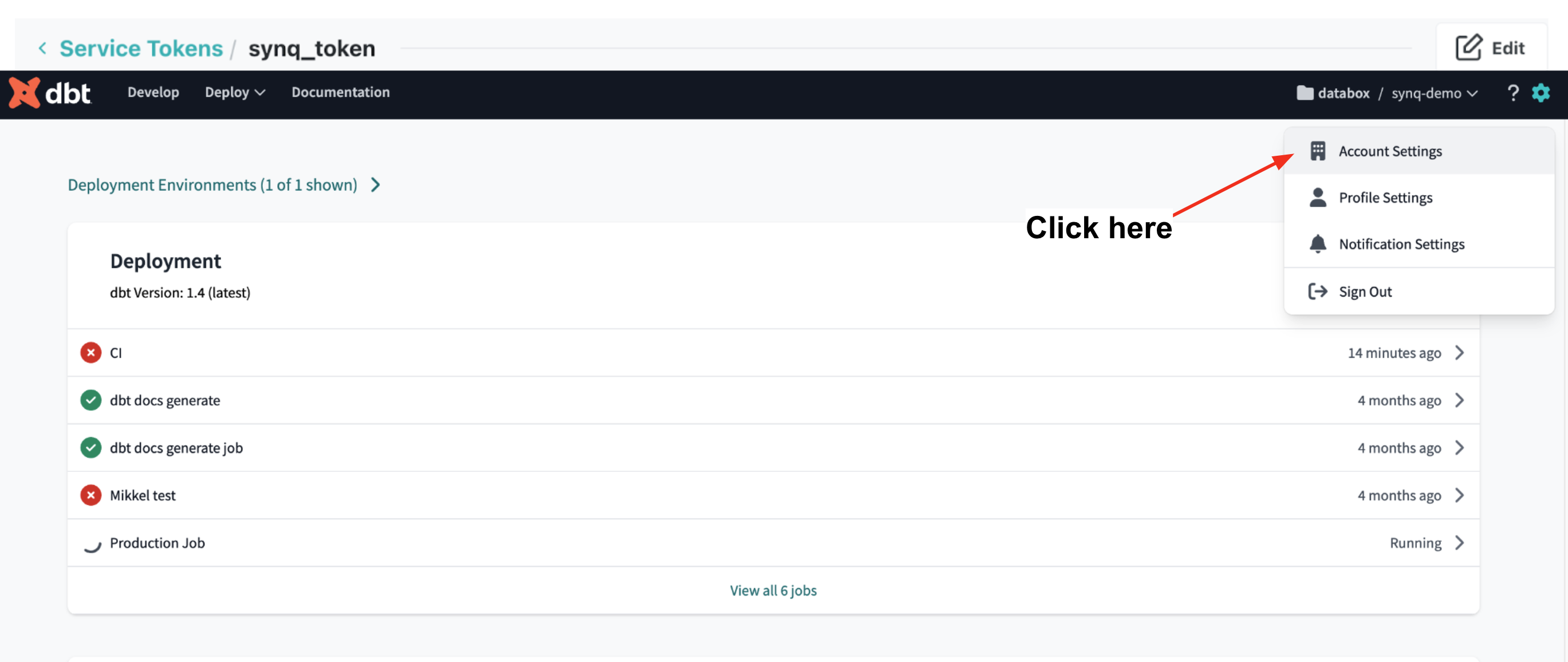
1. Open dbt cloud and go to **Account Settings** in the menu bar
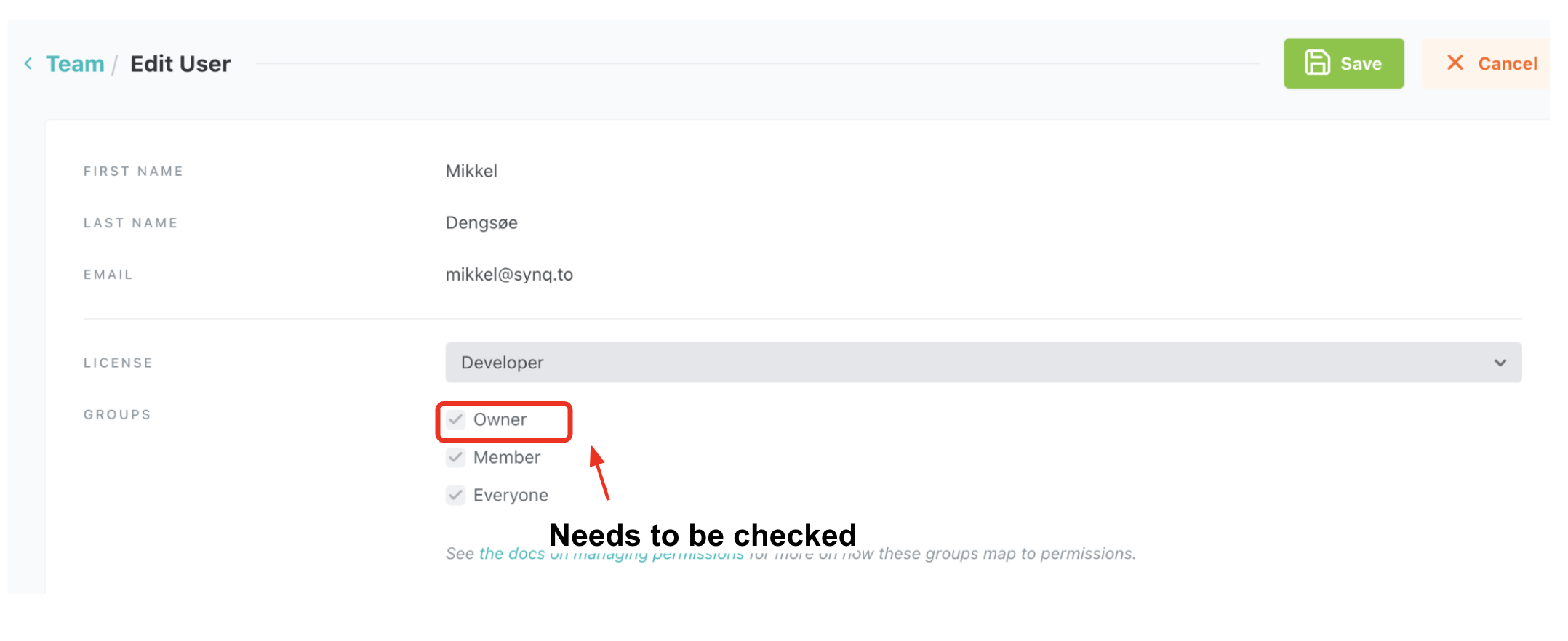
 * *If you don’t see this option in the sidebar you don’t have the right dbt permission. If this is the case, either ask your dbt admin to make you an **Owner** (expand to see how) or ask the dbt admin to complete the steps in this guide*
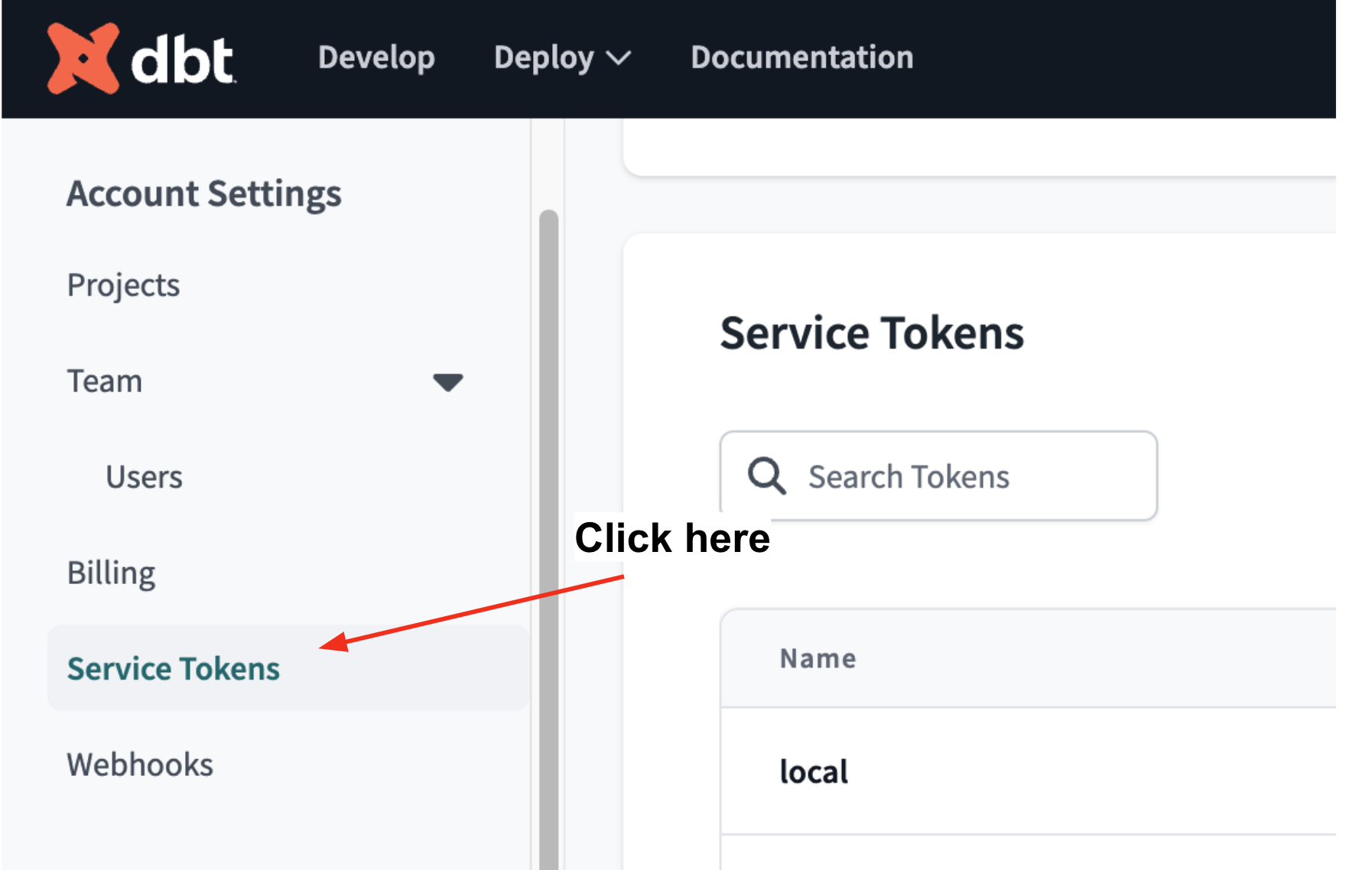
 2. Click **Service Tokens**
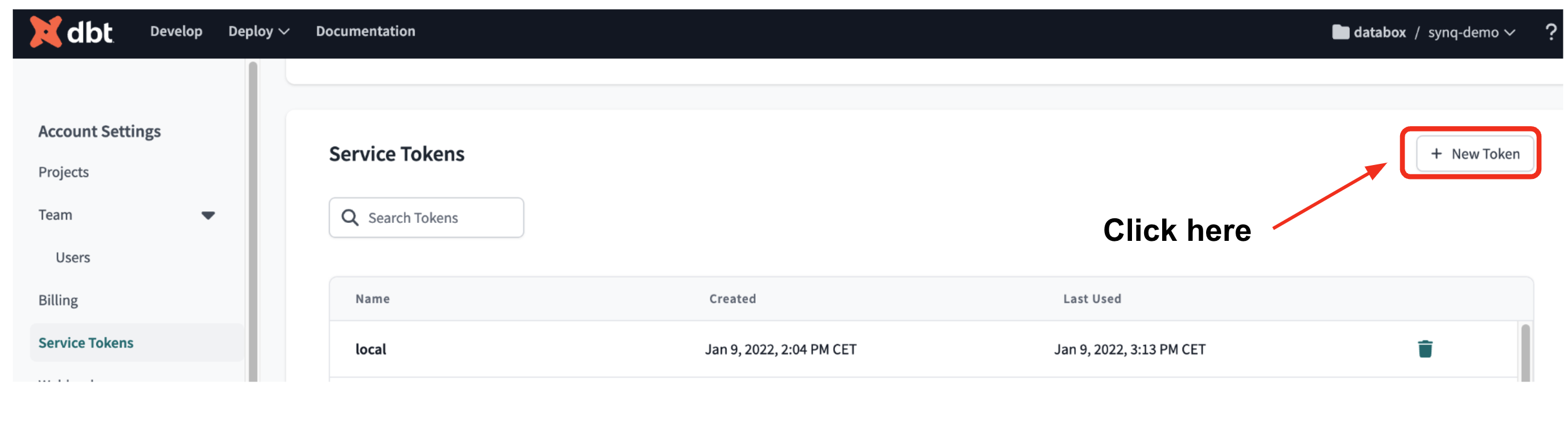
 3. Create **New Token**
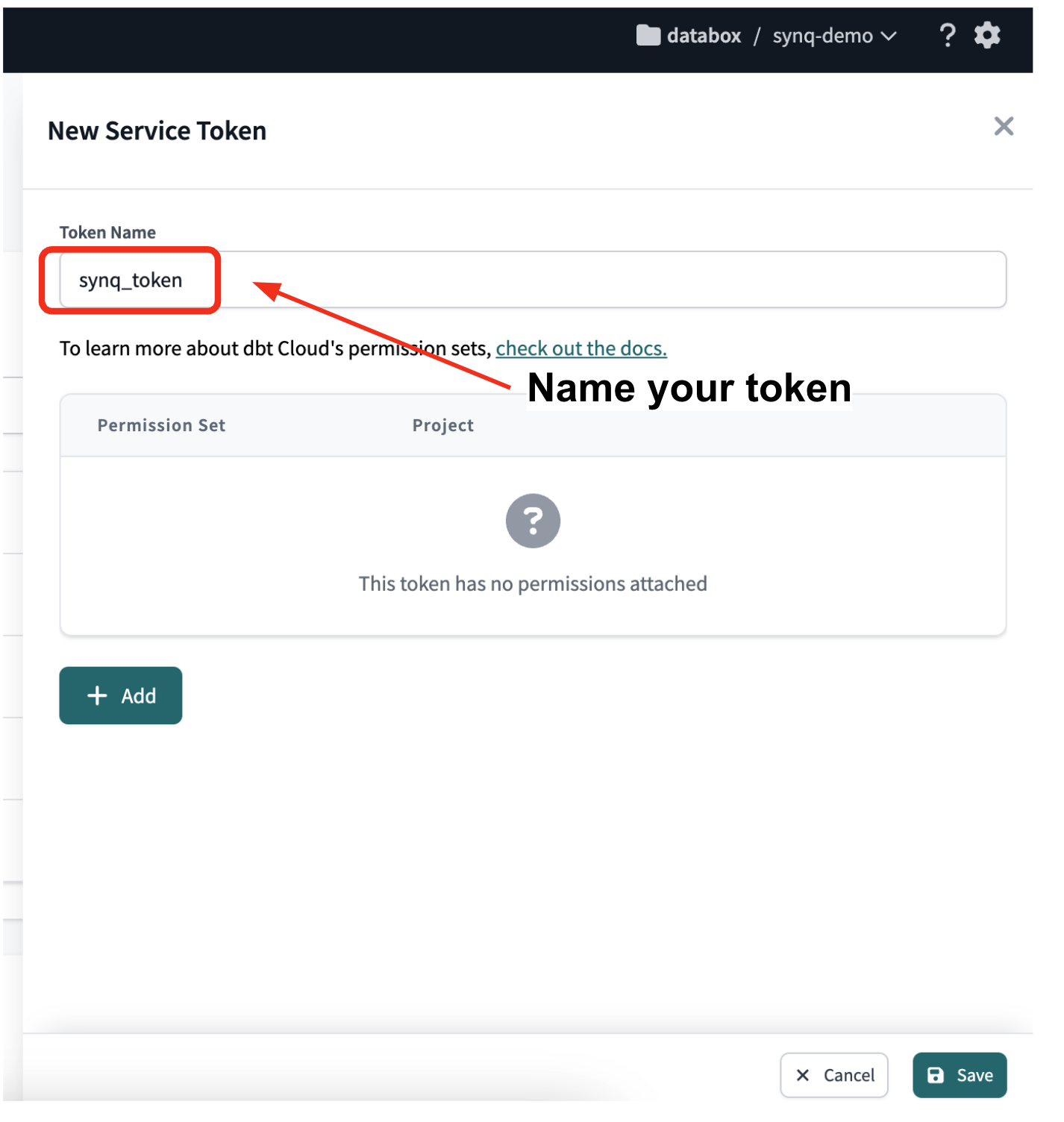
 4. **Name** your token
*This could be synq\_token so you can identify it later*
4. **Name** your token
*This could be synq\_token so you can identify it later*
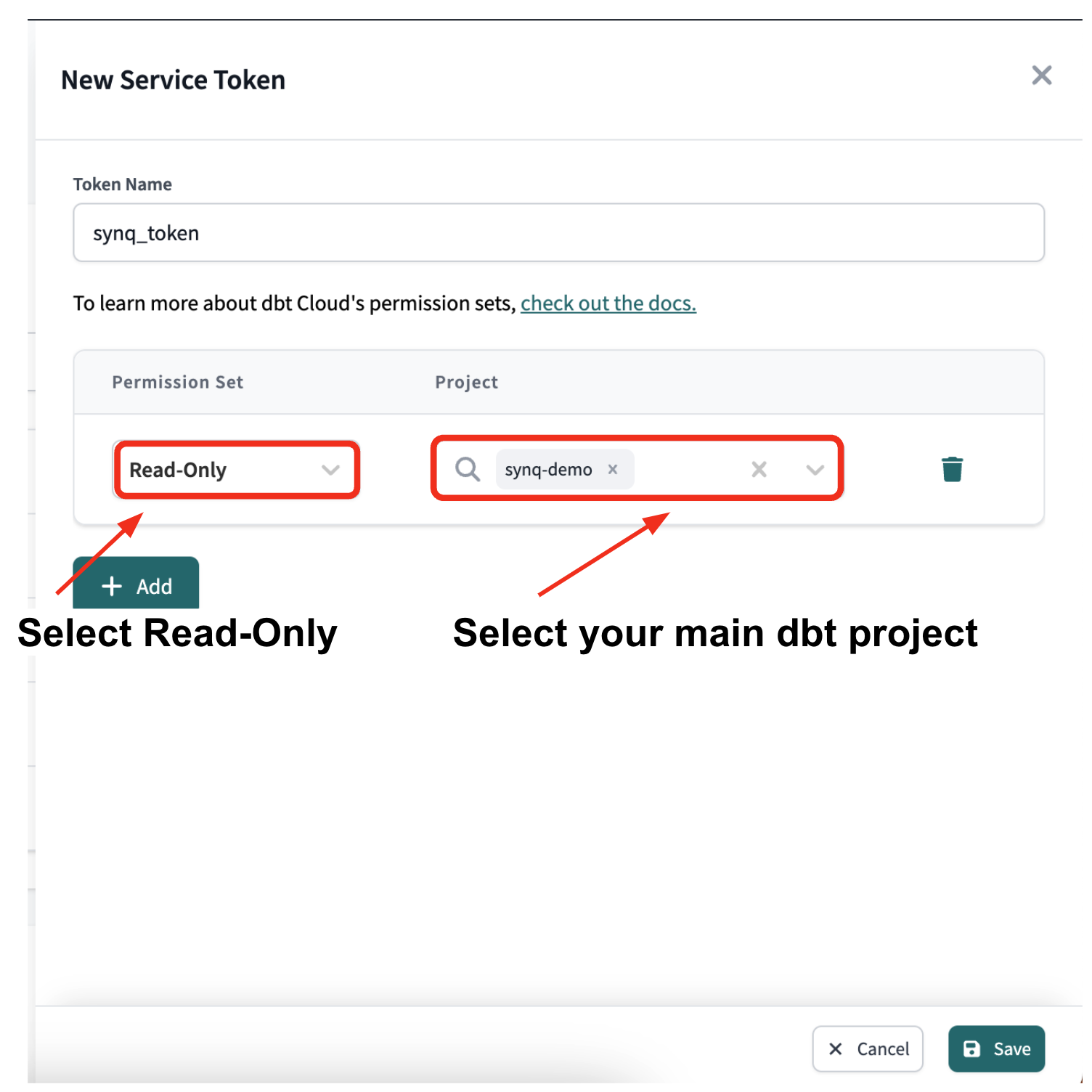
 5. Click **Add** to add a new permission
6. Set permissions
* `Permission Set` should be set to **Read-Only.** This will let Coalesce Quality read your dbt logs
* `Project` should be set to your main dbt project. If you want to integrate multiple projects, add all projects you want to integrate or set to All Projects
5. Click **Add** to add a new permission
6. Set permissions
* `Permission Set` should be set to **Read-Only.** This will let Coalesce Quality read your dbt logs
* `Project` should be set to your main dbt project. If you want to integrate multiple projects, add all projects you want to integrate or set to All Projects
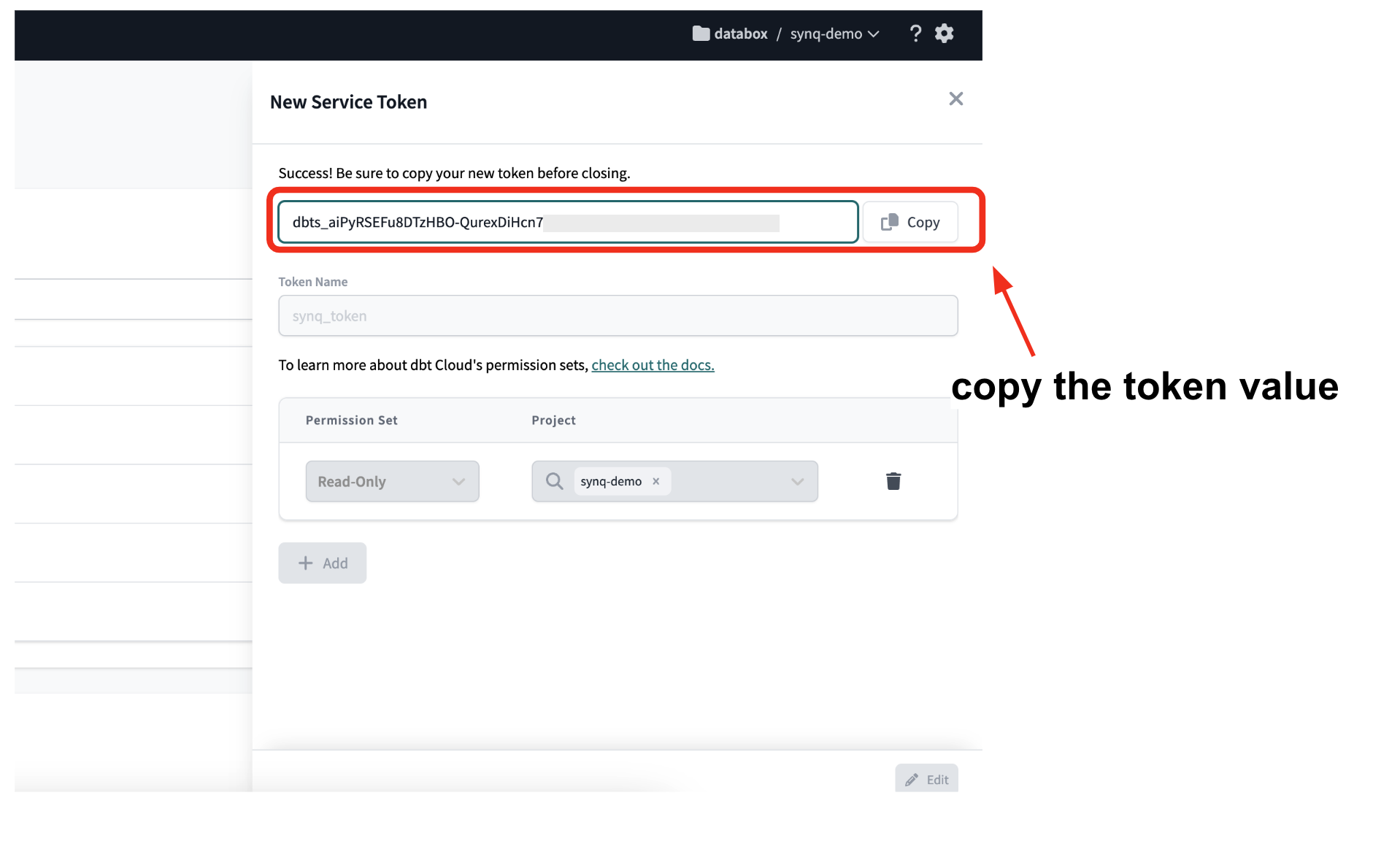
 7. **Save** the token
8. **Copy** the token value
Make sure to write the token id down as you will not be able to access it again afterwards
7. **Save** the token
8. **Copy** the token value
Make sure to write the token id down as you will not be able to access it again afterwards
 ## Select your dbt project
Choose your main dbt project
## Select the job(s) you want Coalesce Quality to monitor
You’ll most likely want to monitor your production and freshness job(s). Unless you have a good reason, we suggest you don’t monitor jobs such as CI, staging, or experimental jobs
# FAQ
### What access do you require?
We only request read access to your metadata and won’t be able to read raw data or update or run any models
### Will you store personal or business-critical data
Coalesce Quality only stores log level data and doesn’t access any actual data from your data warehouse
### Which artifacts are you collecting from dbt
We are collecting the following artifacts from dbt. For more information about dbt artifacts see [this article](https://docs.getdbt.com/docs/dbt-cloud/using-dbt-cloud/artifacts)
* manifest.json — to understand the structure of the warehouse
* run\_results.json — to see the status of executions
* catalog.json — to be able to provide catalog-like functionality
* Optionally sources.json — to capture dbt source freshness
## Select your dbt project
Choose your main dbt project
## Select the job(s) you want Coalesce Quality to monitor
You’ll most likely want to monitor your production and freshness job(s). Unless you have a good reason, we suggest you don’t monitor jobs such as CI, staging, or experimental jobs
# FAQ
### What access do you require?
We only request read access to your metadata and won’t be able to read raw data or update or run any models
### Will you store personal or business-critical data
Coalesce Quality only stores log level data and doesn’t access any actual data from your data warehouse
### Which artifacts are you collecting from dbt
We are collecting the following artifacts from dbt. For more information about dbt artifacts see [this article](https://docs.getdbt.com/docs/dbt-cloud/using-dbt-cloud/artifacts)
* manifest.json — to understand the structure of the warehouse
* run\_results.json — to see the status of executions
* catalog.json — to be able to provide catalog-like functionality
* Optionally sources.json — to capture dbt source freshness