> ## Documentation Index
> Fetch the complete documentation index at: https://docs.synq.io/llms.txt
> Use this file to discover all available pages before exploring further.
# GitHub Integration
> Add deploy keys to GitHub repositories for Coalesce Quality
## Overview
This guide covers how to add the generated public SSH key as a deploy key to your GitHub repository.
**Before you start:** Create your Git integration first by following the [integration form instructions](/code-integrations/overview#configuring-the-integration). You'll need the public SSH key from that integration.
## Prerequisites
* Access to GitHub
* **Admin access** to your repository (required to add deploy keys)
* Public SSH key from your Git integration
⏱️ **Estimated time:** 5 minutes
## IP Whitelisting (If Required)
If your GitHub organization uses IP allow lists, add the Coalesce Quality egress IP addresses for your region. See [IP Whitelist](/security/ip) for the complete list.
For instructions on adding IP addresses to GitHub, see GitHub's guide on [managing allowed IP addresses](https://docs.github.com/en/organizations/keeping-your-organization-secure/managing-allowed-ip-addresses-for-your-organization).
## Adding the Deploy Key
Follow these steps to add the public key as a deploy key to your GitHub repository.
### Navigate to Your Repository
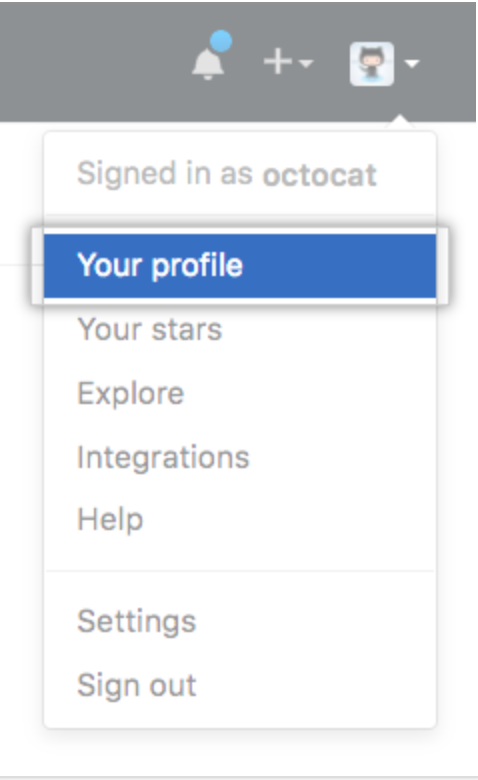
1. In the upper-right corner of any GitHub page, click your **profile photo**, then click **Your profile**
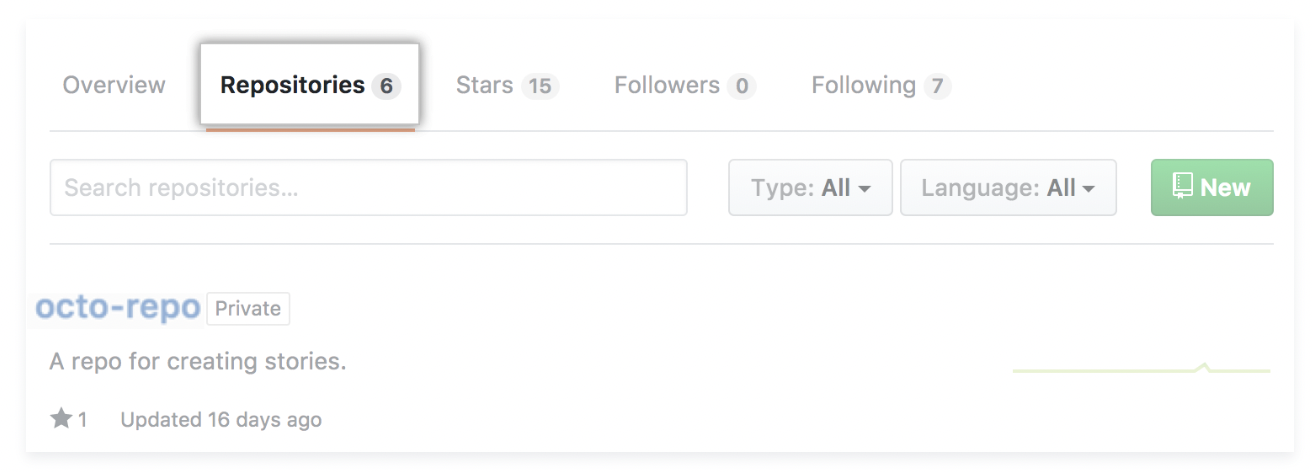
 2. On your profile page, click **Repositories**, then click the name of your repository
 ### Access Repository Settings
3. From your repository, click **Settings**
### Access Repository Settings
3. From your repository, click **Settings**
 If you don't see the **Settings** tab, you likely don't have admin access to the repository. Contact your repository administrator to add the deploy key.
### Add the Deploy Key
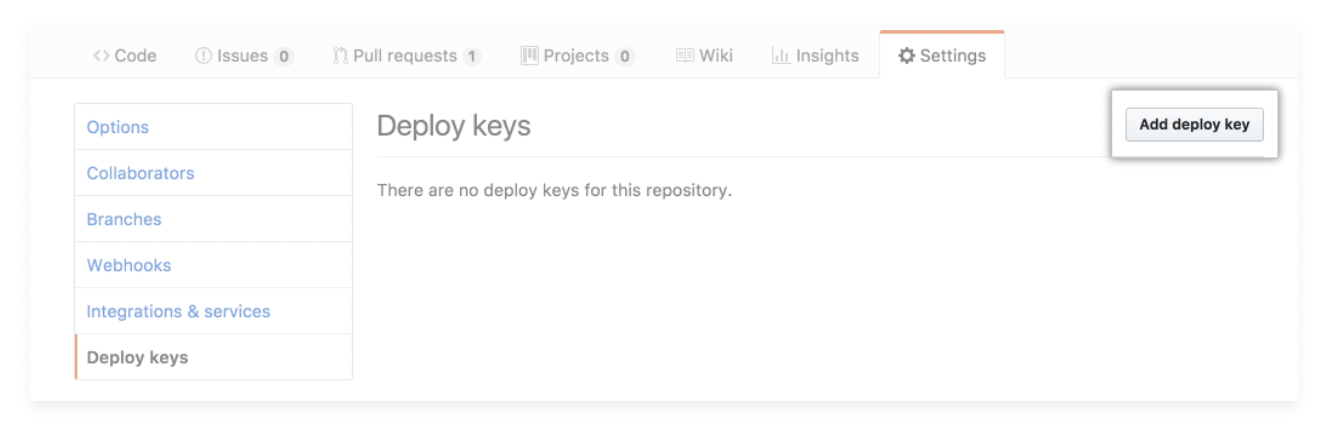
4. In the sidebar, click **Deploy Keys**, then click **Add deploy key**
If you don't see the **Settings** tab, you likely don't have admin access to the repository. Contact your repository administrator to add the deploy key.
### Add the Deploy Key
4. In the sidebar, click **Deploy Keys**, then click **Add deploy key**
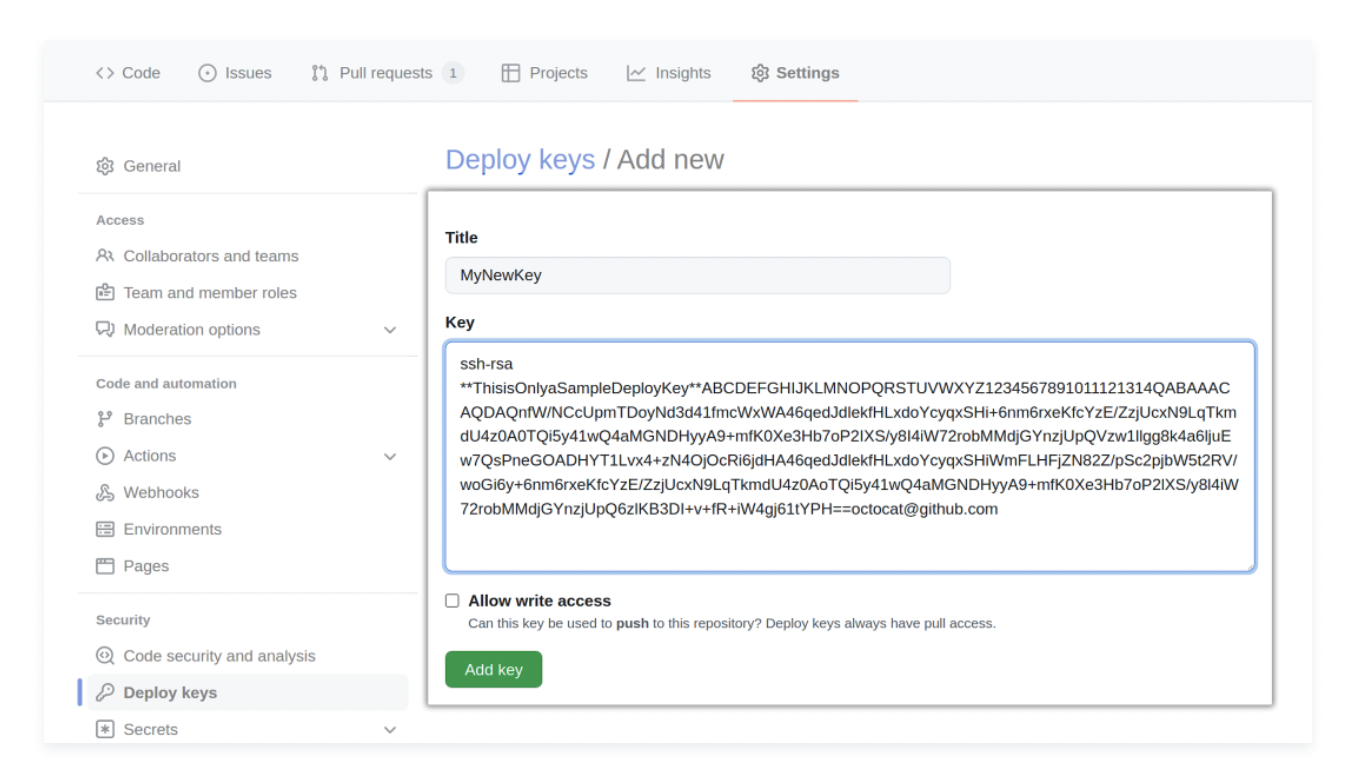
 5. Configure the deploy key:
* **Title:** Enter a descriptive name (e.g., `Coalesce Quality Integration`)
* **Key:** Paste the public key from your integration (Step 1)
* **Allow write access:** Leave this checkbox **unticked** (unchecked)
5. Configure the deploy key:
* **Title:** Enter a descriptive name (e.g., `Coalesce Quality Integration`)
* **Key:** Paste the public key from your integration (Step 1)
* **Allow write access:** Leave this checkbox **unticked** (unchecked)
 **Do not grant write access.** Coalesce Quality only requires read-only access to your repository.
6. Click **Add key** to save the deploy key
That's it! Your GitHub repository is now connected in read-only mode.
## Troubleshooting
### Deploy key not working
* Verify the **complete public key** was copied (including the `ssh-rsa` or `ssh-ed25519` prefix)
* Ensure the deploy key was added to the **correct repository**
* Confirm **write access is disabled** (unchecked)
### Connection refused
* Check that your GitHub organization's **IP allow list** (if configured) includes the Coalesce Quality egress IPs
* Verify the repository **SSH URL** is correct in the integration form
### No Settings tab visible
* Confirm you have **admin access** to the repository
* Organization owners may need to adjust access permissions
## Additional Resources
* [GitHub Deploy Keys Documentation](https://docs.github.com/en/developers/overview/managing-deploy-keys#deploy-keys)
* [GitHub IP Allow Lists](https://docs.github.com/en/organizations/keeping-your-organization-secure/managing-allowed-ip-addresses-for-your-organization)
* [Back to Integration Overview](/code-integrations/overview)
**Do not grant write access.** Coalesce Quality only requires read-only access to your repository.
6. Click **Add key** to save the deploy key
That's it! Your GitHub repository is now connected in read-only mode.
## Troubleshooting
### Deploy key not working
* Verify the **complete public key** was copied (including the `ssh-rsa` or `ssh-ed25519` prefix)
* Ensure the deploy key was added to the **correct repository**
* Confirm **write access is disabled** (unchecked)
### Connection refused
* Check that your GitHub organization's **IP allow list** (if configured) includes the Coalesce Quality egress IPs
* Verify the repository **SSH URL** is correct in the integration form
### No Settings tab visible
* Confirm you have **admin access** to the repository
* Organization owners may need to adjust access permissions
## Additional Resources
* [GitHub Deploy Keys Documentation](https://docs.github.com/en/developers/overview/managing-deploy-keys#deploy-keys)
* [GitHub IP Allow Lists](https://docs.github.com/en/organizations/keeping-your-organization-secure/managing-allowed-ip-addresses-for-your-organization)
* [Back to Integration Overview](/code-integrations/overview)