> ## Documentation Index
> Fetch the complete documentation index at: https://docs.synq.io/llms.txt
> Use this file to discover all available pages before exploring further.
# Tableau
> Integrating Tableau with Coalesce Quality
This guide will walk you through how to set up the Coalesce Quality integration with Tableau. As a result, we can create a complete picture of your Tableau setup and connect it to your data warehouse and transformation models (dbt, SQLMesh, or Coalesce Transform).
To finish this guide, you’ll need the following:
→ Site Administrator, Site Administrator Explorer or Site Administrator Creator access to Tableau
⏱️ Estimated time to finish: 10 minutes.
# Integration
Coalesce Quality connects to your Tableau instance as a specific user, authenticated via [personal access token](https://help.tableau.com/current/server/en-us/security_personal_access_tokens.htm). The optimal way to set it up is to create a personal access token under at least `Site Administrator Explorer` user, which would give Coalesce Quality the necessary permissions to fetch all observability data to reconstruct the end-to-end lineage of your Tableau objects.
*In case you are limited by security policies to provide Admin-level access, we also offer an admin-less integration using a CLI tool. Reach out to us in our shared Slack channel to set this up.*
## Setup guide
### Connection URI
The base URL of your Tableau cloud instance (e.g., `https://dub01.online.tableau.com`)
### Site
The site for your Tableau project. You can find this after the `/site/` path in the URL (e.g., `synq` in `https://dub01.online.tableau.com/#/site/synq/`)
### Token name and token secret
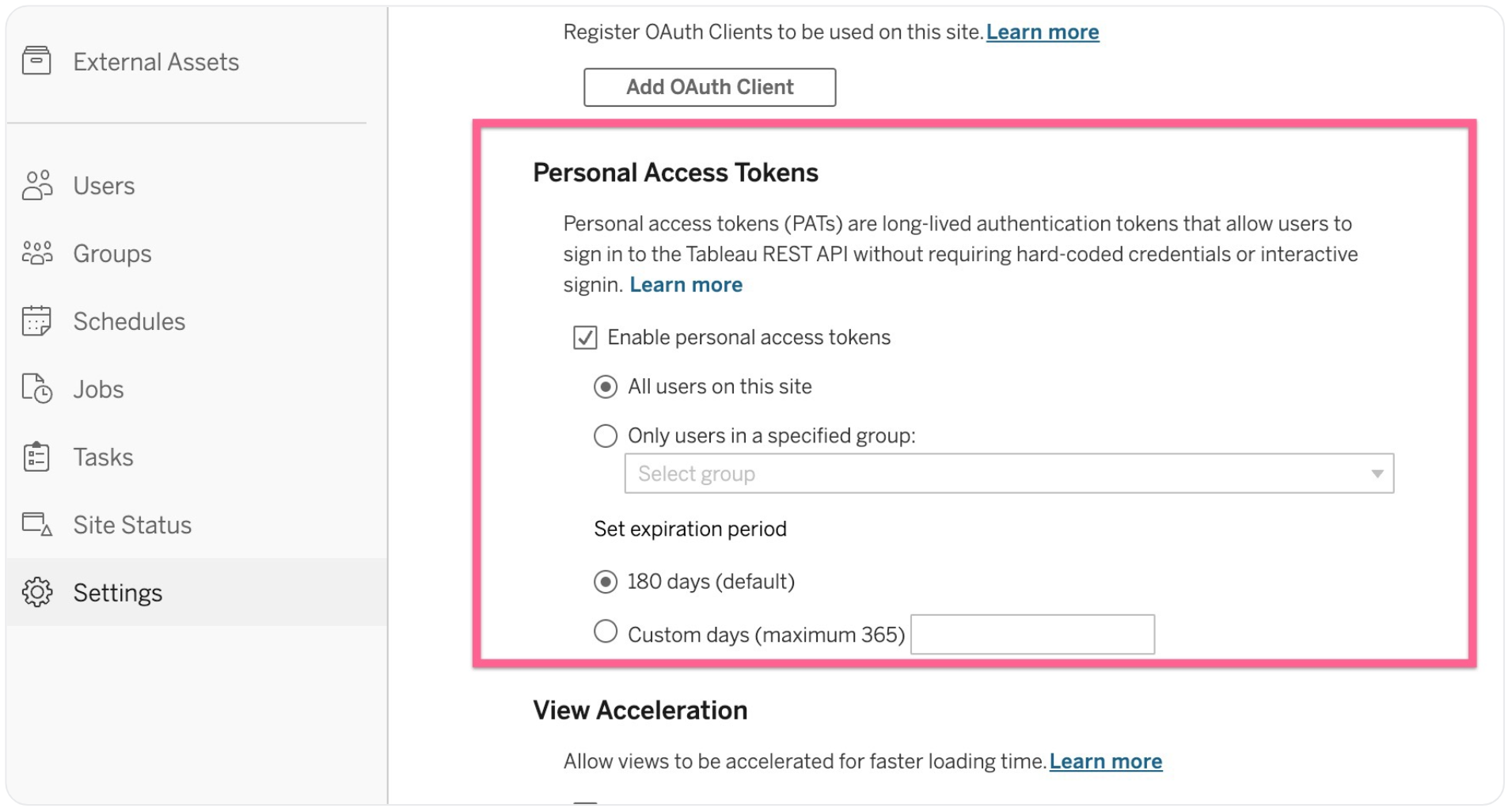
Personal Access Tokens (PATs) are disabled by default. To enable them, log into Tableau as a site administrator, go into `Settings` (not `My Account Settings`), and scroll to the Personal Access Tokens section. Hit `save` to apply the changes.
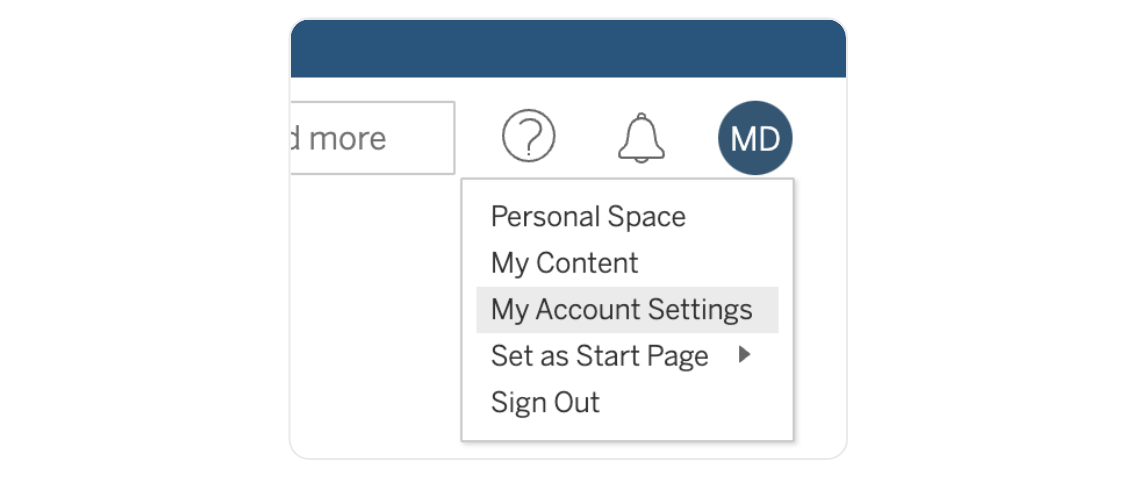
 Once you’ve enabled the creation of Personal Access Tokens, go to `My Account Settings` scroll down to Personal Access Tokens, and click `Create Token`. Copy the `token name` and `secret` and input them into Coalesce Quality.
 ### Projects
By default, we’ll ingest all your Tableau projects. If you only want some projects integrated, add the names of those in Coalesce Quality
### Projects
By default, we’ll ingest all your Tableau projects. If you only want some projects integrated, add the names of those in Coalesce Quality