> ## Documentation Index
> Fetch the complete documentation index at: https://docs.synq.io/llms.txt
> Use this file to discover all available pages before exploring further.
# Microsoft Teams
Current capabilities:
* Integrate with the Coalesce Quality app on Microsoft Teams.
* Set up the MS Teams integration.
* Add MS Teams channels and mentions in owners.
* Receive alerts for new issues.
# Setup
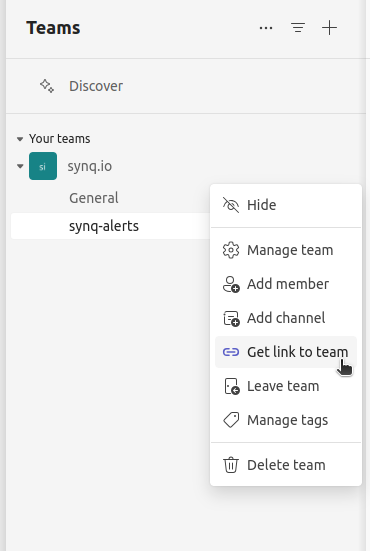
* Ask your Teams admin to install the app available [here](https://github.com/getsynq/releases/raw/main/msteams/coalesceQuality-v1.2.0.zip). There are various options for app installation. The easiest would be to directly install it on the team you wish to integrate with for alerts.
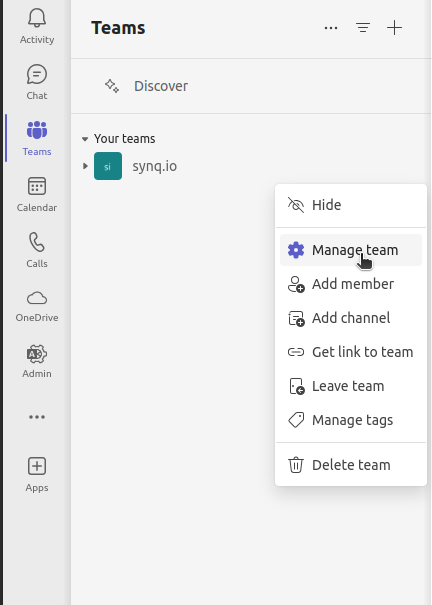
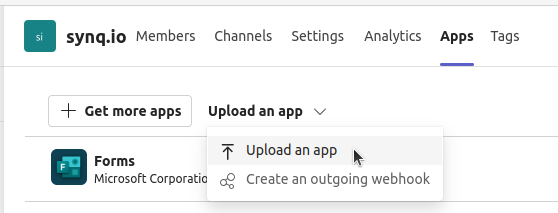
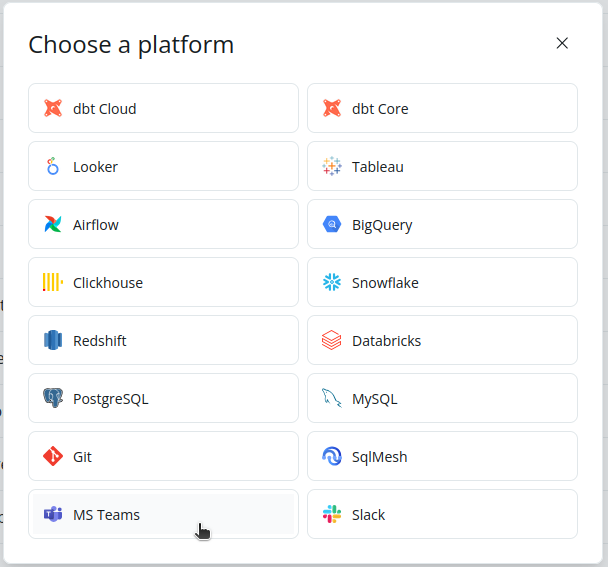
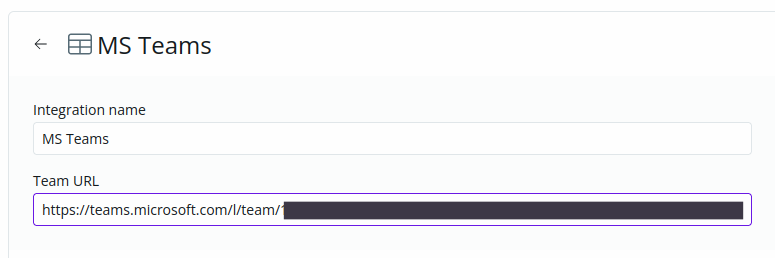
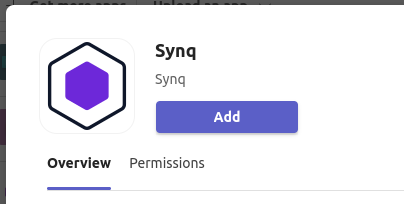 * Add an integration on the [settings page](https://app.synq.io/settings/integrations). Select `MS Teams` from the list of platforms. You will need to enter the team URL to create the integration. Once you enter the correct URL, hit `Create` to finalize the creation.

 # Creating or Editing Owners
To receive notifications on a Teams channel, you will need to create an owner with the channel configured or update an existing owner with the Teams channel. The following steps apply to either scenario.
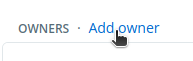
* Choose `Add Owner` or `Edit` from the owner's menu.
# Creating or Editing Owners
To receive notifications on a Teams channel, you will need to create an owner with the channel configured or update an existing owner with the Teams channel. The following steps apply to either scenario.
* Choose `Add Owner` or `Edit` from the owner's menu.
 * Under the section `MS Teams` click `@ Add teams` to enable Teams for the owner. You can then select a channel from the configured Team and optionally add mentions for channel members.

 * Once you confirm the create or edit, all alerts configured for the owner will land on the selected Teams channel! 🎉
# Troubleshooting
* If you do not see the option for `MS Teams` while creating or editing an owner, you might not have added the integration. Please setup the bot and integration before trying to edit / create owners.
* If the MS Teams option is disabled, the bot might not be correctly installed on your Team. Contact your Teams admin to set up the bot as per the guide above.
* Once you confirm the create or edit, all alerts configured for the owner will land on the selected Teams channel! 🎉
# Troubleshooting
* If you do not see the option for `MS Teams` while creating or editing an owner, you might not have added the integration. Please setup the bot and integration before trying to edit / create owners.
* If the MS Teams option is disabled, the bot might not be correctly installed on your Team. Contact your Teams admin to set up the bot as per the guide above.